
Below is an example of creating a manual order in your Dashboard for an Amazon FBA shipment.
Before You Begin
Before creating an Amazon FBA shipment order, ensure you have:
- The Amazon FBA Shipment ID (FBA#)
- The correct Amazon fulfillment center address
- Amazon-generated carton and/or pallet labels
- Confirmed inventory availability in the warehouse
- Verified shipment quantities and SKU information
Create a Manual Order
-
In your Shipment Order dashboard, click Create Shipment Order.
Dashboard → Fulfillment → Shipment Orders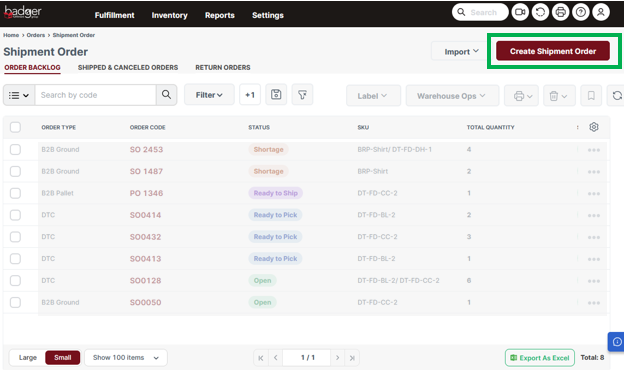
- Fill out the highlighted order details described below, then click Next Step to continue.
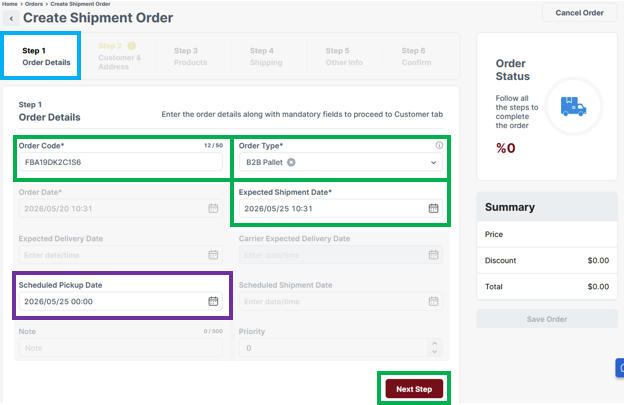
Order Code: Enter the Amazon FBA Shipment ID (FBA#).
Order Type: Select either B2B Ground or B2B Pallet, depending on the shipment method.
Order Date: Leave this as the current date the order is being created.
Expected Shipment Date: Enter the expected future ship date as needed, taking into consideration the minimum order processing SLAs below. If left blank, the order will be processed as soon as possible by default.
Minimum order processing SLAs are based on orders entered by 12:00 PM CT. Orders entered after this cutoff time will begin processing on the next business day.
Shipment Type Minimum Order Processing SLA* Amazon Ground 2-3 Business Days Amazon Freight 3-4 Business Days
Example 1: A standard Amazon Ground order entered before 12:00 PM CT on Monday will typically ship by Wednesday.
Example 2: A standard Amazon Freight order entered before 12:00 PM CT on Monday will typically be ready for pickup by Thursday.
Scheduled Pickup Date: For scheduled freight pickups, enter the pickup date while taking into consideration the minimum order processing SLAs above. It is recommended to add a 1–2 business day buffer to allow time for inventory verification and order exception processing. Requested pickup dates are subject to inventory availability, order verification, and minimum processing SLAs. Pickup dates entered earlier than the minimum processing SLA may require rescheduling. -
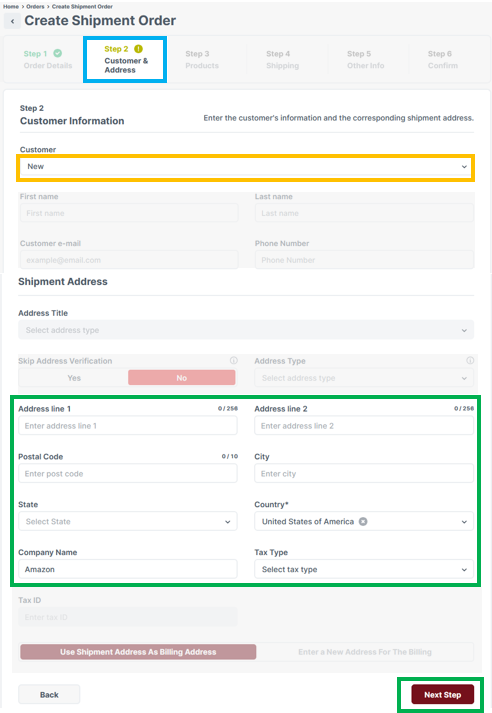
Enter the highlighted Customer & Address information below, then click Next Step to continue.
You can either manually enter a new Amazon customer address or use the Customer field to search for and select an existing address profile, which will automatically populate the address information.
For frequent shipments to Amazon fulfillment centers, using saved customer address profiles is recommended. (See the related article on setting up customer address profiles.)
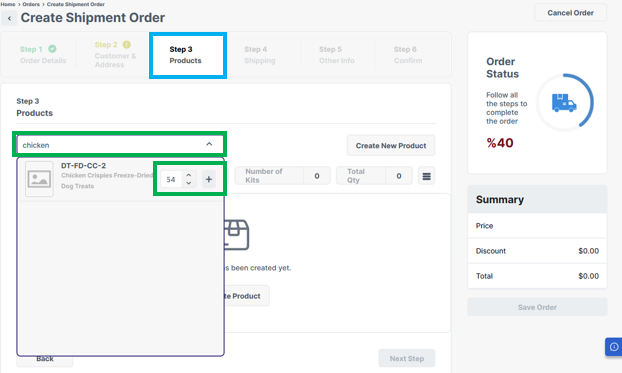
- Add products to the order by entering a product SKU code or product name in the search field. Then, enter the order quantity for the SKU and click the + icon to add the item to the order.
-
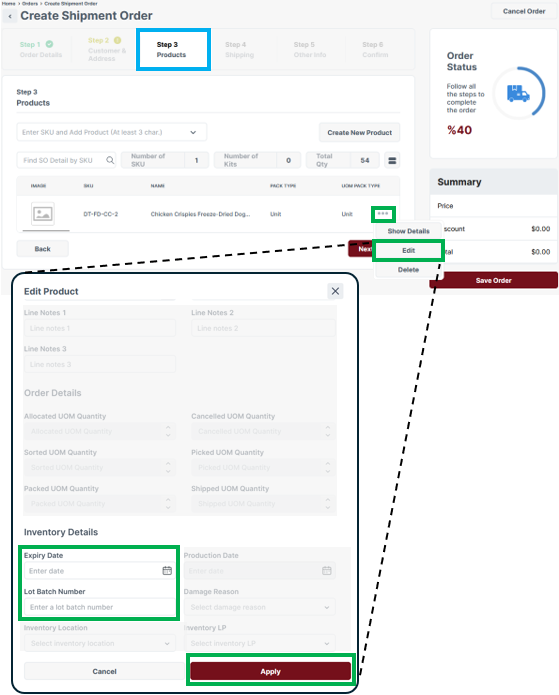
If needed, you can specify product Lot/Batch or Expiration Date information for retailer compliance requirements. Only enter this information when necessary, as it may impact picking efficiency. By default, inventory will be allocated using FEFO/FIFO inventory rotation rules.
To enter this information, click the three dots icon to the right of the product in the order list, then select Edit.
Under Inventory Details, enter the Expiration Date and/or Lot/Batch Number as needed. This information can be referenced in the Inventory by Location report.
-
-
No shipping information is required for Amazon FBA orders, as shipments are typically sent using either collect freight or third-party ground shipping labels generated through the Amazon portal and uploaded to the Shipment Order by the client.
See the instructions below for uploading Amazon shipping labels, after saving the order.
-
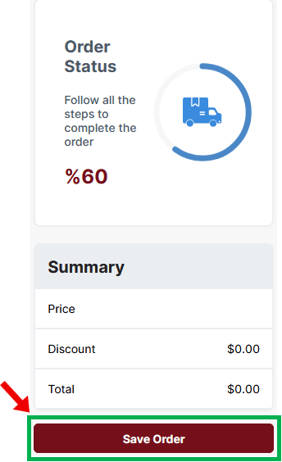
Click Save Order on the right side of the screen.
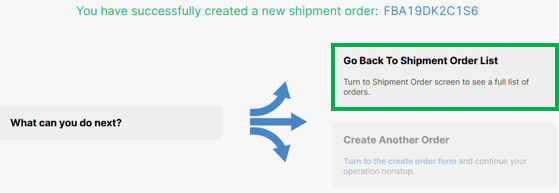
- Select Go Back To Shipment Order List
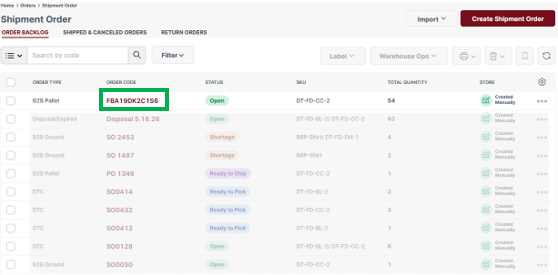
- Select the FBA Order Code from the Shipment Order Dashboard.
-
On the right-hand side of the order page, under Printouts, click the + icon next to Other Documents (do not select Shipment Label).
From the Document Type dropdown, select PackingDocument, then upload the Amazon-generated case labels and/or pallet labels. Once the files have been uploaded, click Save.
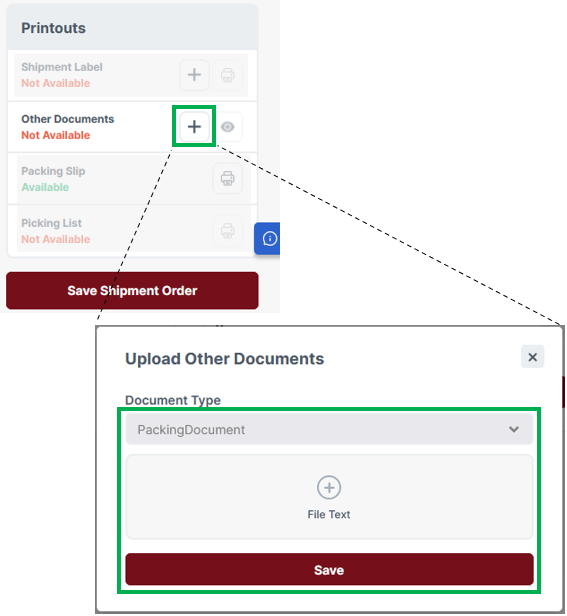
- Click Save Shipment Order.
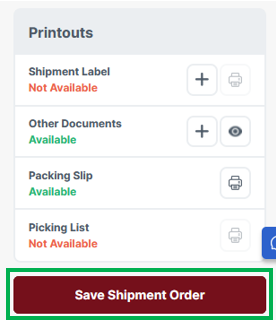

You have successfully created an Amazon FBA order. The order is now live in the Shipment Orders dashboard and ready for processing.
Note: If the order is not ready for processing, be sure to update the order status to On Hold.
After the Order Is Submitted
Once submitted, the order will appear in the Shipment Orders dashboard and enter the processing queue based on the applicable SLA.
You can monitor order progress and shipment status directly from the dashboard.
If needed, finalized pallet dimensions and weights will be provided to customers via email once the order has been completed and prepared for shipment.
Freight Pickup Instructions
Bills of Lading (BOLs) are required prior to carrier arrival and must be emailed to shipping@badgerfg.com before the scheduled pickup date and time. Failure to provide required shipping documentation prior to pickup may result in delays, rescheduling, or additional handling fees.
Freight pickups are handled on a first-come, first-served basis at a standard loading dock (no liftgate required).
Shipping Dock Hours
- Monday–Friday
- 12:00 PM – 4:00 PM CT
Important Notes
- Ensure Amazon carton/pallet labels match the shipment being created.
- Uploaded labels must clearly display the corresponding product SKU and/or product name so labels can be accurately matched to the correct product cases during order processing.
Example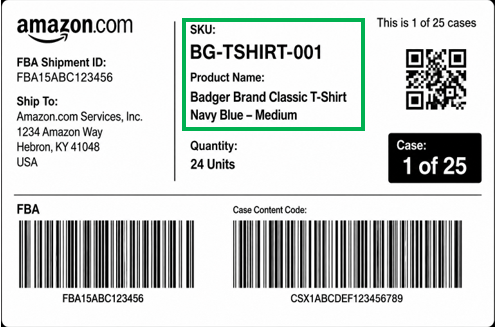
Note: The example label shown above is provided for reference purposes only. Actual Amazon FBA case and pallet labels may vary in format, layout, and displayed information depending on the shipment configuration generated through Amazon Seller Central. - Inventory shortages or order exceptions may impact processing timelines.
- Requested freight pickup dates that do not align with minimum processing SLAs may require rescheduling.
- Orders entered after 12:00 PM CT begin processing the next business day.