
Overview
Customer Address Profiles allow clients to save frequently used customer shipping information within their Dashboard. By creating saved address profiles, users can quickly select existing customer details when creating manual orders instead of re-entering shipping information each time. This helps streamline order entry, reduce manual data entry, improve accuracy, and save time when shipping to repeat customers.
Create Customer
-
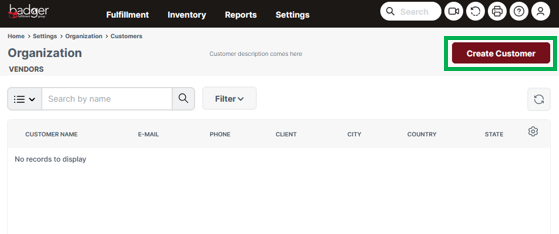
In your Dashboard, navigate to the Customers screen and select Create Customer.
Dashboard → Settings → Customers
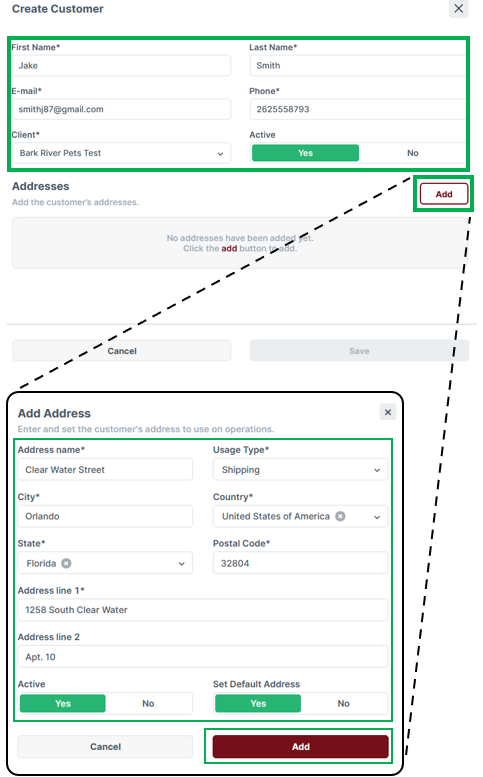
- Completely fill out the required contact information, then select Add next to Addresses to create the applicable shipping address profiles. Multiple addresses can be added under a single contact profile as needed. Each address can be distinguished using the unique Address name field. For the Usage Type, select Shipping. You may also designate a default shipping address.
- Once all addresses have been added, select Save.
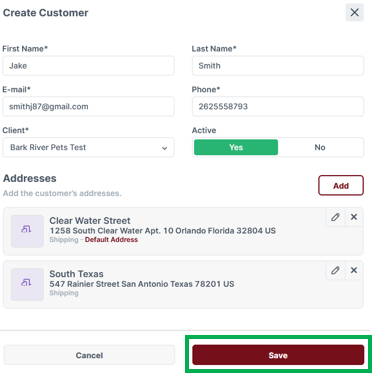
You have successfully created a customer address profile. You can now quickly search for and select this customer profile to automatically pre-populate address information when creating a manual order in your Shipment Orders Dashboard.
In the Customer & Address section of the shipment order, use the Customer dropdown to select the customer name. If multiple addresses exist for that customer, select the appropriate address using the Address Title field under the Shipment Address section.
To edit a customer profile, navigate to the Customers screen, select the three dots next to the customer name, and then choose Edit.