Contents
What is a Manual Product?
A "Manual Product" is a product created and managed directly in your Dashboard.
A "Product" may represent a single physical item (Product), or a combination of items ordered together (Kit).
Examples of manual products may include:
- Marketing materials (inserts, stickers)
- Packaging (branded boxes / mailers)
- Kit components
- Project materials
Manual products do not have a corresponding ecommerce listing, and therefore, do not automatically sync to your Dashboard.
Although some products may not have a corresponding ecommerce listing (i.e. inserts, stickers, or packaging), these products need to be set up in your Dashboard with a SKU, Name, and Primary UOM defined, at minimum.
Create and manage manual products directly in your Products Dashboard. Manual products do not sync to ecommerce platforms, and can only be managed in your Dashboard.
Create a Manual Product-SKU
A Product-SKU represents a single physical item (vs. a Kit-SKU); this includes inserts, stickers, packaging, and whole cases.
- Navigate to your Products Dashboard. Select Create New Product, then select Product (Do NOT use Category "Packaging Material" for any items).
Dashboard -> Settings -> Products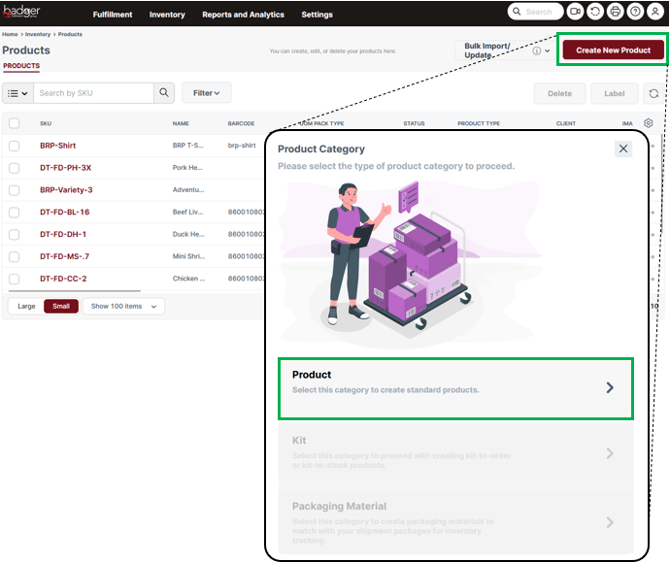
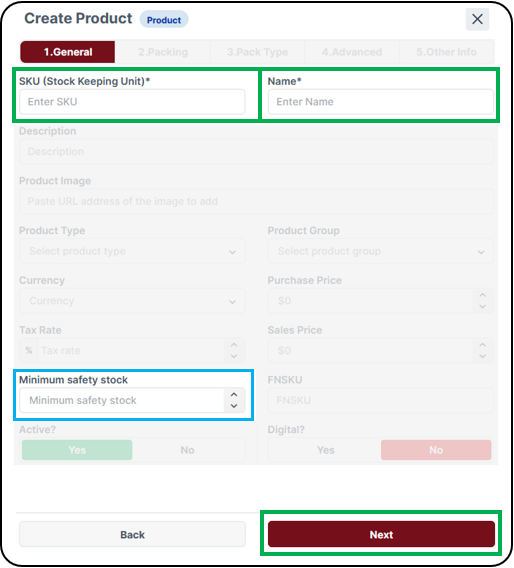
- Enter a SKU and a Name. Optional: enter a 'Minimum Safety Stock' quantity; when available inventory is below this quantity, clients will be notified via email. Do not fill out any other fields. Select Next button, until you reach the 'Pack Type' tab.
- In the 'Pack Type' tab, select 'Add Primary (UOM) Pack Type'.
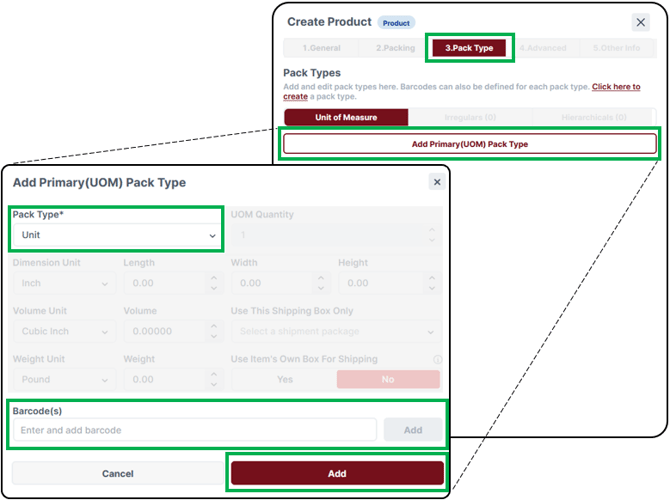
In the pop-up window:- Dropdown and select 'Pack Type*':
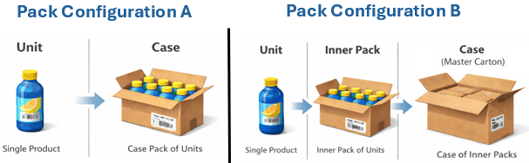
- Select Unit if the SKU represents a single item, that is not configured in its own cardboard box.
- Select Inner Pack if the SKU represents a case or "pack" that is master packed.
- Select Case if the SKU represents item(s) packed in a cardboard box (master carton).
- Dropdown and select 'Pack Type*':
-
- Add a Barcode (this is the barcode displayed on the outside of the product packaging).
- Select 'Add'
- Set up Pack Types if your Product-SKU is physically packed in a consistent configuration (i.e. Case Pack); this is important for inventory and order management.
To set up Pack Types:
-
The respective Pack Quantities must be consistent; you can set up one configuration per Pack Type.
- Cases must have a proper case label affixed to the outside of the package containing a scannable case-specific barcode (the case barcode must be different than the barcode of the individual items inside).
In the 'Pack Type' tab, select 'Add New Irregular Pack Type' under 'Irregulars'.
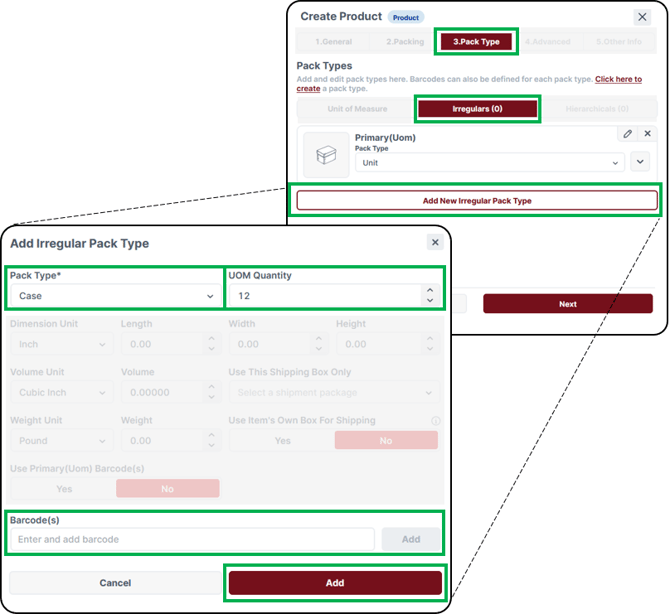
In the pop-up window:- Dropdown and select 'Pack Type*':
- Select Case if you are setting up a case-pack
- Select Pallet if you are setting up a full pallet configuration
- UOM Quantity: Enter the quantity of the base UOM contained in the Pack Type.
- For 'Case', add the case-specific barcode.
- Select Add
- Repeat these steps to add an additional Pack Types.
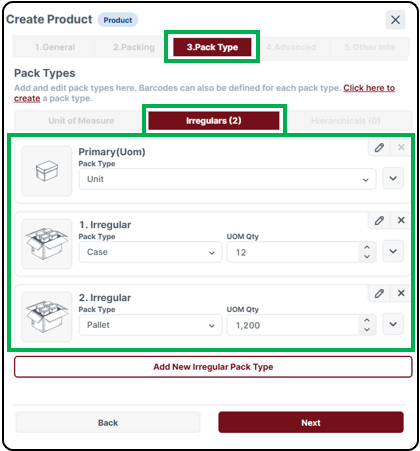
-
- Select Next. If this Product is shipping internationally, you must add custom declarations under the 'Advanced' tab. This is critical for international shipping label generation. The following info is required:
- Declared Value
- HS Tariff Code (Harmonized System Code)
- Origin Country Code (2-digit Country Code)
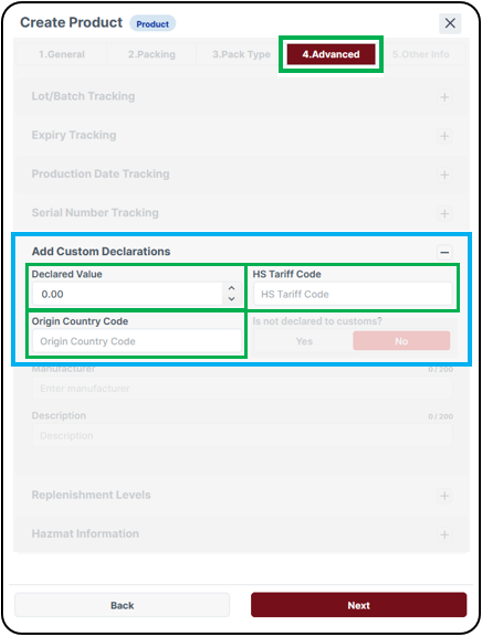
- Select 'Next', and then select 'Save' under the 'Other Info' tab.
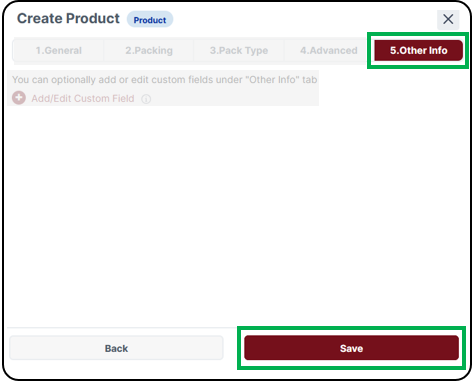

You have successfully created a Product SKU in your Dashboard. You may now add this SKU to a Purchase Order or Shipment Order at this time.
Bulk Create Manual Products
If you are creating many Product-SKUs at once, you have the option to bulk create Products, using an Excel template.
- Download the Badger Bulk Create Manual Products Excel Template
- Fill out the Excel template with necessary Product info. Fill out one row per SKU (data columns with red headers are required). Multiple SKUs may be created using one template file (include data on subsequent rows). Once Product info is filled out, save the file.
Example:
- Client: Enter your Dashboard Client Name.
- SKU: Enter a SKU
- Name: Enter a Name / Title
- Pack Type: Enter the Primary (UOM) Pack Type.
- Enter Unit if the SKU represents a single item, that is not configured in its own cardboard box.
- Enter Inner Pack if the SKU represents a case or "pack" that is master packed.
- Enter Case if the SKU represents item(s) packed in a cardboard box (master carton).
-
- UPC: Enter the scannable UPC/Barcode displayed on the outside of the packaging.
- Minimum Safety Stock: Optional - enter a minimum safety stock quantity; you will be notified via email when available inventory drops below this quantity.
- Declared Value: For international shipping, enter the declared value.
- HS Tariff: For international shipping, enter the Harmonized System Tariff Code.
- Origin Country: For international shipping, enter the 2-digit country of origin code.
- Description (optional): for international shipping, enter an alternate product description specific for Customs Declaration.
- Navigate to the 'Bulk Import Products' page:
Dashboard -> Settings -> Products -> Bulk Import/Update - > [Import] Products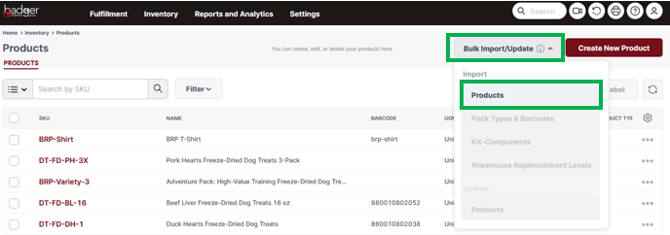
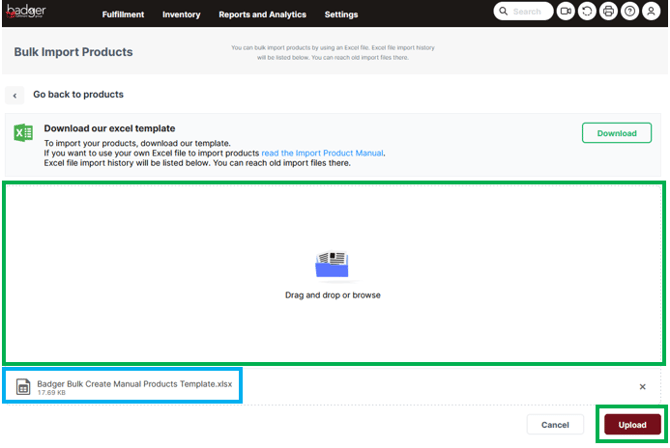
- Drag and drop your files in the window or click to browse. Your files will populate below. Select Upload, and then select Import on the next screen.
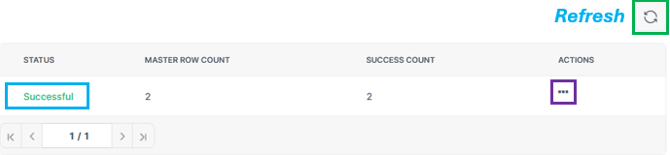
- View the import status in the lower window (you may need to select the refresh button). If the import is successful, the Status will show "Successful". If the import is unsuccessful, select the three dots -> Details, under 'Actions', to reference any error messages.
- Lastly, after any product import, double check the SKUs were properly created in the Products Dashboard. For any new SKUs included on the import file, pull up the "product page" and ensure the Product information is accurate (Primary UOM Pack Type, Custom Declarations, etc.).
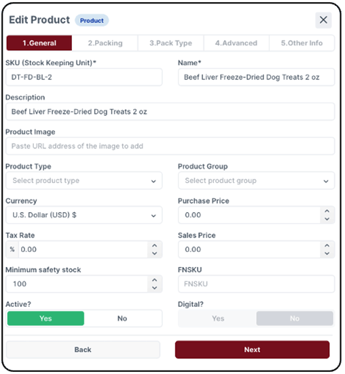
You have successfully bulk created Products in your Dashboard. You may now add these SKUs to a Purchase Order or Shipment Order at this time.
Create a Manual Kit
A Kit represents a combination of Products ordered together.
Prior to creating a new Kit, all component Product-SKUs must be created first, and exist in your Products Dashboard.
- Navigate to your Products Dashboard. Select Create New Product, then select Kit.
Dashboard -> Settings -> Products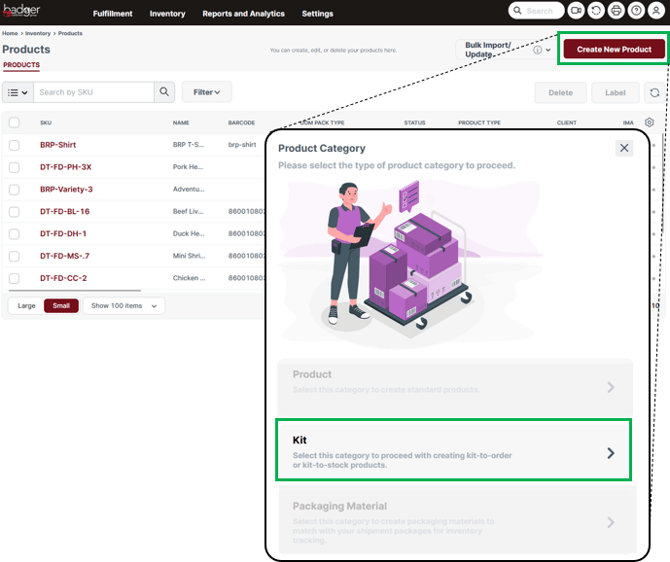
- Enter a SKU and a Name. Optional: enter a 'Minimum Safety Stock' quantity; when available inventory is below this quantity, clients will be notified via email (available kit inventory is calculated based off the available component SKU quantities). Do NOT fill out any other fields. Select Next button.
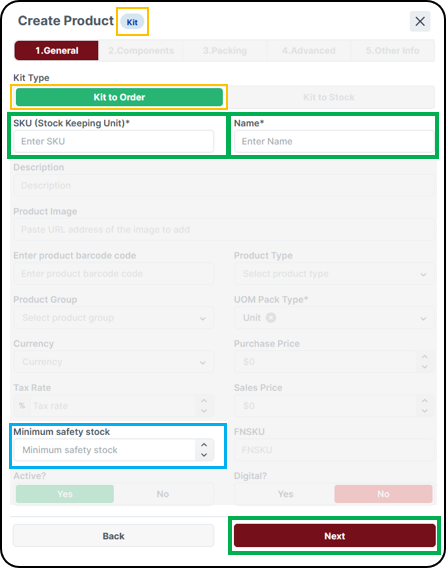
- In the 'Components' tab, search and add component Product SKUs.
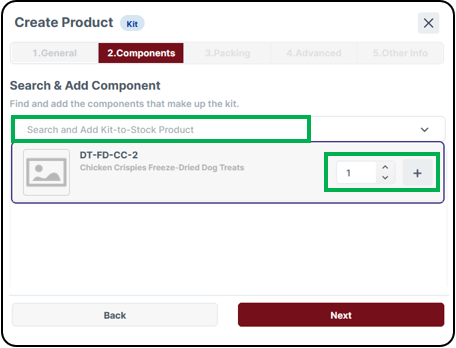
- Enter a Product SKU or Name into the Search field. Enter the component quantity and then click the + icon to add the SKU to the Kit component list. Add all component SKUs Quantities contained in the kit.
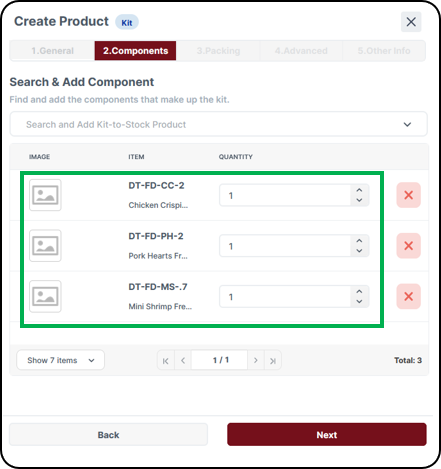
- Enter a Product SKU or Name into the Search field. Enter the component quantity and then click the + icon to add the SKU to the Kit component list. Add all component SKUs Quantities contained in the kit.
- Once all component SKUs / quantities are added in the 'Components' tab, select 'Next' until you reach the 'Other Info' tab, and then select 'Save'.
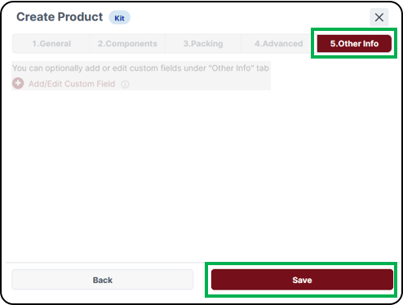

You have successfully created a Kit SKU in your Dashboard. You may now add this SKU to a Shipment Order at this time.
Bulk Create Manual Kits
To bulk create Kits, you must first bulk create the SKUs under Category: Product; see the 'Bulk Create Products' section above. Once the Product-SKUs exist in your Dashboard, use the Badger Kit Setup Excel Template to "convert" the SKU category to: Kit, and add components.
- Navigate to your Products Dashboard
Dashboard -> Settings -> Products - Verify the Product-SKUs exist in your Dashboard.
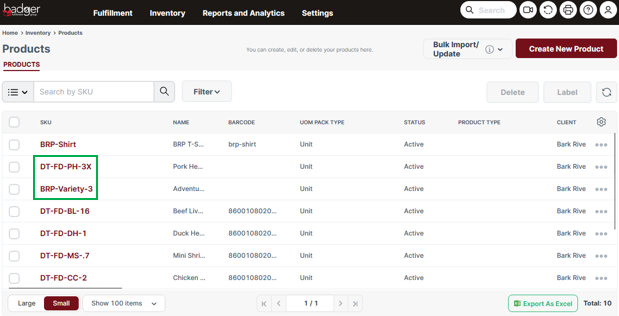
- Download the Badger Kit Setup Excel Template.
- Fill out the Excel Template with necessary Kit information. Fill out one row per Kit component; all data columns must be filled out. Multiple Kit-SKUs may be set up using one template file (include data on subsequent rows). Once all kit components and quantities are completely filled out, save the file.
Example: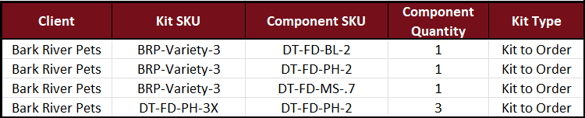
- Client: Enter your Dashboard Client Name.
- Kit SKU: Enter the Kit-SKU.
- Component SKU: Enter the Product-SKU.
- Component Quantity: Enter the Component-SKU quantity.
- Kit Type: Enter "Kit to Order".
- Navigate to the 'Bulk Import Kit-Component' page:
Dashboard -> Settings -> Products -> Bulk Import/Update - > Kit-Components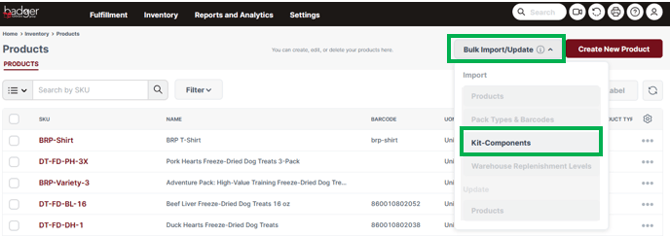
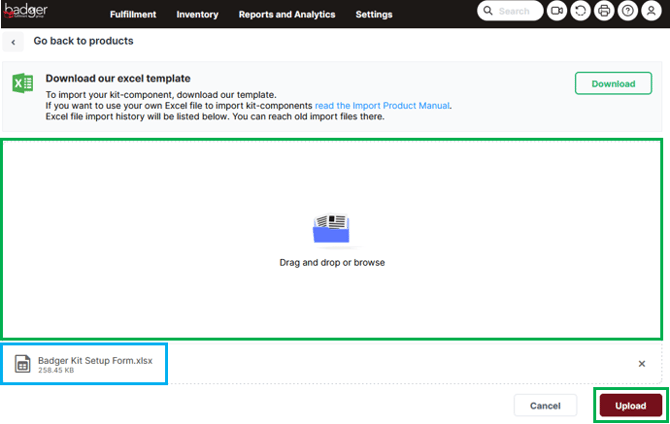
- Drag and drop your files in the window or click to browse. Your files will populate below. Select Upload, and then select Import on the next screen.
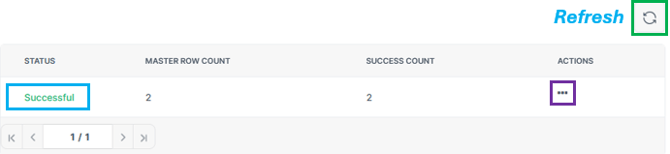
- View the import status in the lower window (you may need to select the refresh button). If the import is successful, the Status will show "Successful". If the import is unsuccessful, select the three dots -> Details, under 'Actions', to reference any error messages.
- Lastly, after any product import, double check the SKUs were properly updated in your Products Dashboard. For any affected kit SKU, pull up the "product page" and ensure the item category was successfully updated to: Kit (Type: Kit to Order).
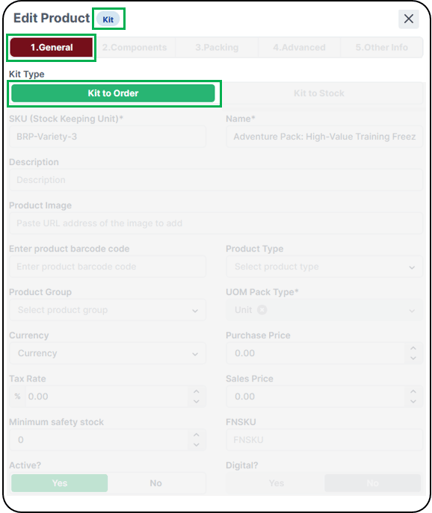
- Select the Components tab and double check complete and accurate Product details. Be sure to Save under the 'Other Info' tab, if you make any updates here.
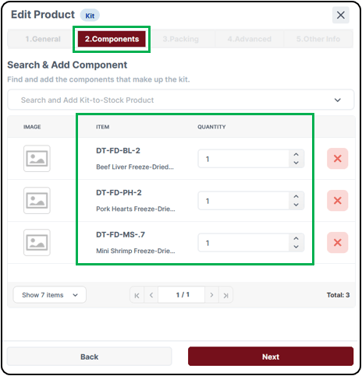
- Select the Components tab and double check complete and accurate Product details. Be sure to Save under the 'Other Info' tab, if you make any updates here.
You have successfully set up a Kit SKU in your Dashboard. You may now add this SKU to a Shipment Order at this time.
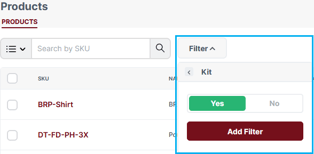
Tip: In your Products Dashboard, you can filter Kit items using the Filter button. Dropdown select 'kit', and toggle to 'Yes'. Select Add Filter. Now, you will only see Kit items in your Products Dashboard. To exit out of the filter, select the "x" on the active filter tab.