Contents
- Edit Order Items / Quantities
- Edit Shipping Address / Customer Info
- Edit Shipping Service (i.e. Express Shipping)
- Put an Order On Hold
Cancel an Order
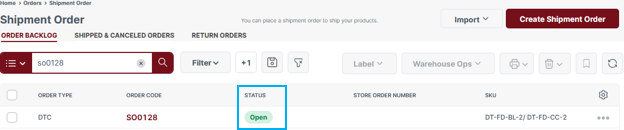
Orders can only be cancelled when the Status is: "Open" or "Shortage".
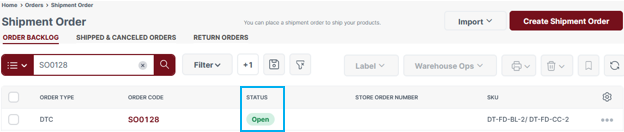
For store orders, cancel the order directly in your ecommerce site (i.e. Shopify); this will automatically update / cancel the order in your Dashboard.
To cancel the order directly in your Dashboard:
-
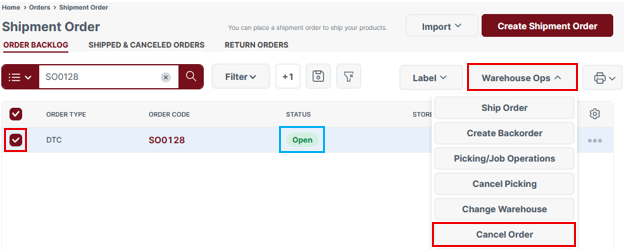
Select the order in the Shipment Order Dashboard, and then select "Cancel Order" under Warehouse Ops; confirm this operation in the pop-up window.
Dashboard -> Fulfillment -> Shipment Orders
-
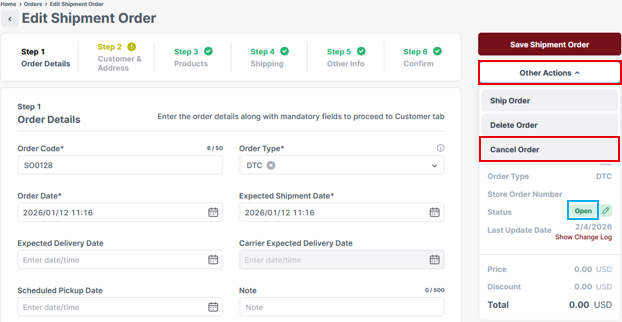
Alternatively, within the 'Edit Shipment Order' page, select "Cancel Order" under Other Actions; confirm this operation in the pop-up window.
Edit Order Items / Quantities
Order items can only be edited when the Status is: "Open" or "Shortage".
For store orders, edit order items directly in your ecommerce site (i.e. Shopify); this will automatically update the order in your Dashboard.
To edit an order directly in your Dashboard:
- Navigate to your Shipment Orders Dashboard. Select an Order Code in the list to edit (the Status must be Open or Shortage).
Dashboard -> Fulfillment -> Shipment Orders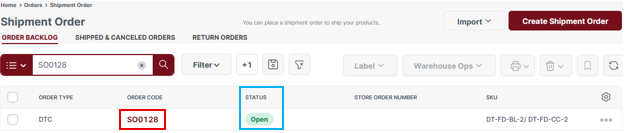
- Select the 'Products' tab.
- To edit a Product quantity, select the three dots to the right of the SKU, and select Edit. Adjust the Quantity (and/or Pack Type) in the 'Edit Product' screen, then select 'Apply'.
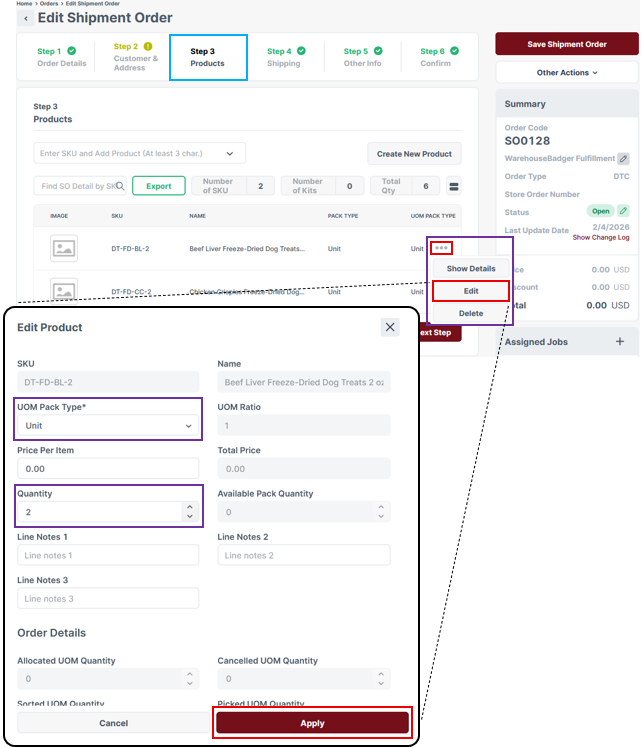
-
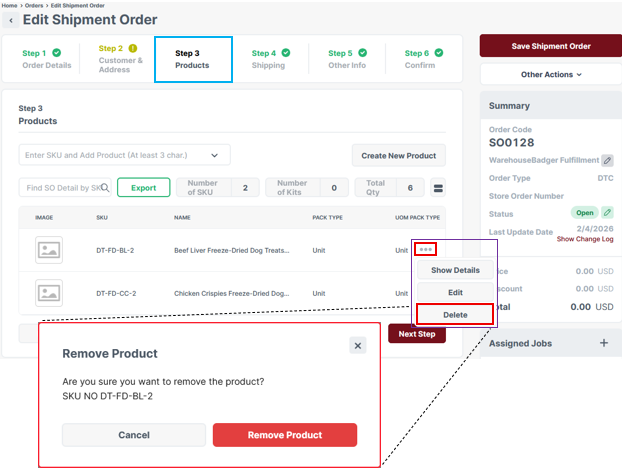
To delete a Product, select the three dots to the right of the SKU, and select 'Delete'. Confirm 'Remove Product' on the pop-up screen.
- To add a Product, enter a Product SKU-code or Name in the search field; enter the SKU order quantity and then select the + icon.
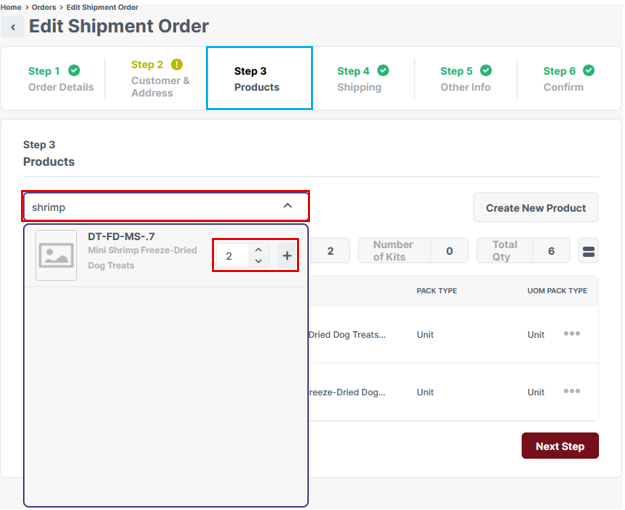
- To edit a Product quantity, select the three dots to the right of the SKU, and select Edit. Adjust the Quantity (and/or Pack Type) in the 'Edit Product' screen, then select 'Apply'.
- After making any updates, select 'Save Shipment Order'.
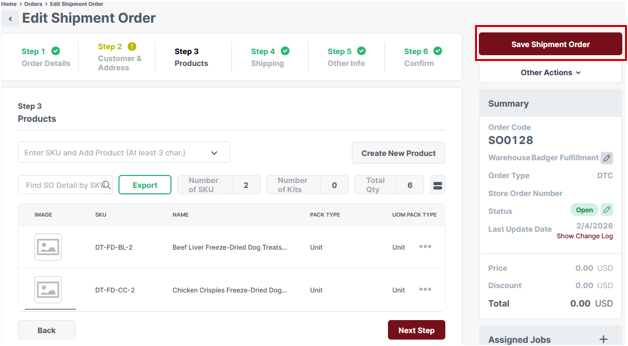
You have successfully edited order items. The order is "live" in the Shipment Order list, ready for processing.
Edit Shipping Address / Customer Info
An order's shipping address or customer info can be edited up to the point / prior to generating a shipping label (Status: "Ready to Pack").
For store orders, update the shipping address or customer info directly in the ecommerce site (i.e. Shopify); this will automatically update the order in your Dashboard.
To edit the order directly in your Dashboard:
- Navigate to your Shipment Orders Dashboard. Select the Order Code in the list to edit.
Dashboard -> Fulfillment -> Shipment Orders - Edit the customer or address info in the 'Customer & Address' tab, and then select 'Save Shipment Order'.
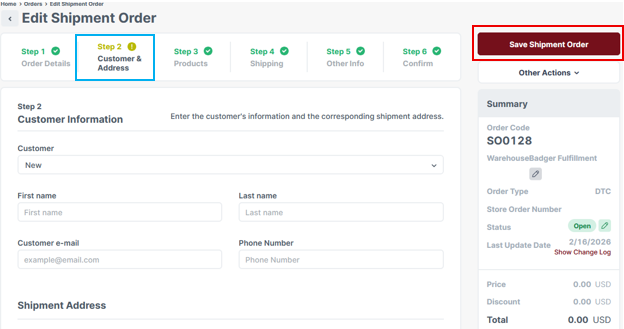
You have successfully edited the order customer / address info.
Edit Shipping Service
An order's [ground] shipping service can be edited up to the point / prior to generating a shipping label (Status: "Ready to Pack").
An order's shipping service must be edited in your Shipment Order Dashboard.
- Navigate to your Shipment Orders Dashboard. Select an Order Code in the list to edit.
Dashboard -> Fulfillment -> Shipment Orders - Select the 'Shipping' tab.
- By default, orders [shipping ground] rate shop standard 2-5 day shipping methods; leave 'Carrier' and 'Shipping Service' fields empty to rate shop standard shipping methods.
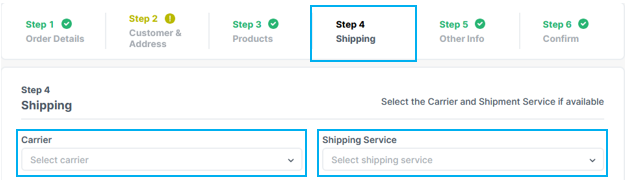
To specify an Express shipping method, designate the following:
- Carrier: Badger FedEx - FedEx
- Shipping Service:
- 2 Day $
- Standard Overnight $$
- After making any updates, select 'Save Shipment Order'.
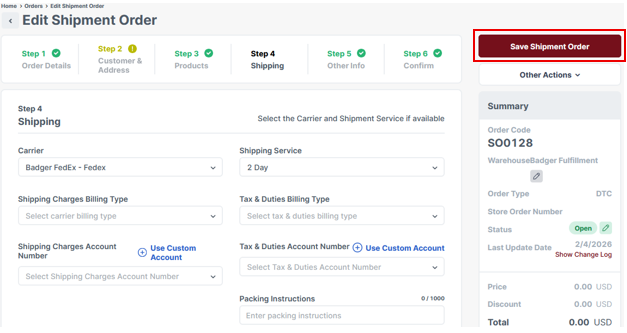
Put an Order On Hold
Orders can only be put On Hold in your Dashboard. An order "On Hold" status in your Dashboard will not be processed.
Orders can only be put On Hold when the Status is: "Open" or "Shortage".
- Navigate to your Shipment Orders Dashboard. Select an Order Code in the list to edit (the Status must be Open or Shortage to put on hold).
Dashboard -> Fulfillment -> Shipment Orders - Select the pencil icon to the right of the order Status. Select 'On Hold', and then select 'Save'; after updating the status, select 'Save Shipment Order'.
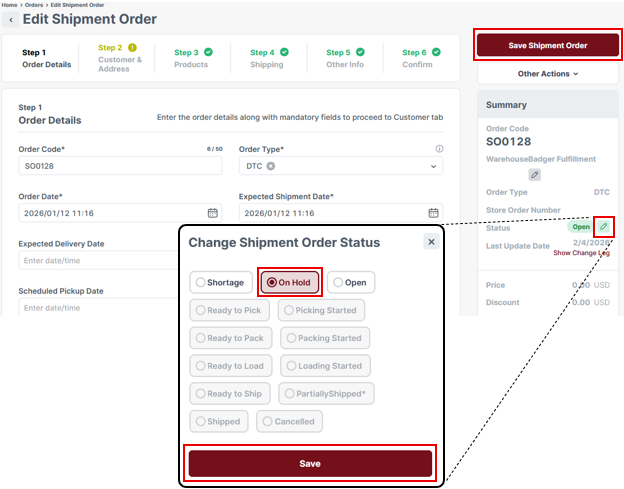
You have successfully put an order on hold. The order will not be processed until taken off hold.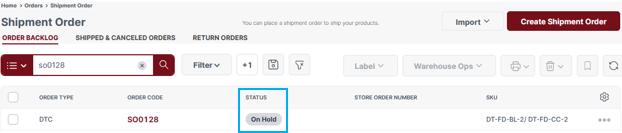
Take an Order Off Hold
An order "On Hold" status in your Dashboard will not be processed, until taken off hold.
- Navigate to your Shipment Orders Dashboard. Select the Order Code in the list to edit.
Dashboard -> Fulfillment -> Shipment Orders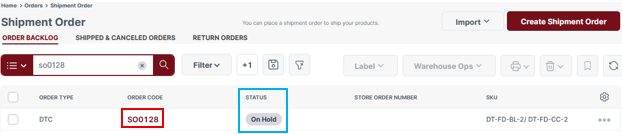
- Select the pencil icon to the right of the order Status. Select 'Open', and then select 'Save'; after updating the status, select 'Save Shipment Order'.
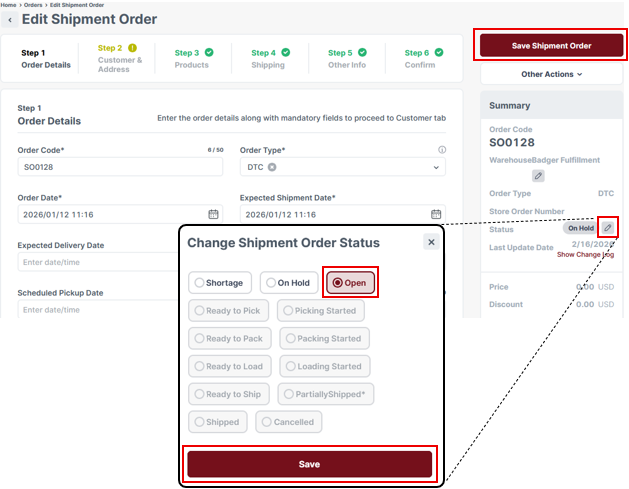
You have successfully taken an order off hold. The order is now ready for processing.