
Contents
Overview
Badger can process the onsite disposal of expired, damaged, or unwanted inventory stored in our warehouse. To request a disposal, clients must create a Disposal order in their Dashboard and submit the Disposal Order Form through the Help Center to authorize and confirm the request. Disposal orders are processed by our warehouse team based on current workload and scheduling availability.
Disposal Order Process
To remove inventory for disposal:
- Create a manual order in your Dashboard with the Order Type set to Disposal. Include all applicable products, quantities, and inventory details. See instructions below.
- Submit the Disposal Order Form under Operations in the Help Center to confirm the disposal request with our team.
Create a Disposal Order
- In your Shipment Order dashboard, select Create Shipment Order.
Dashboard → Fulfillment → Shipment Orders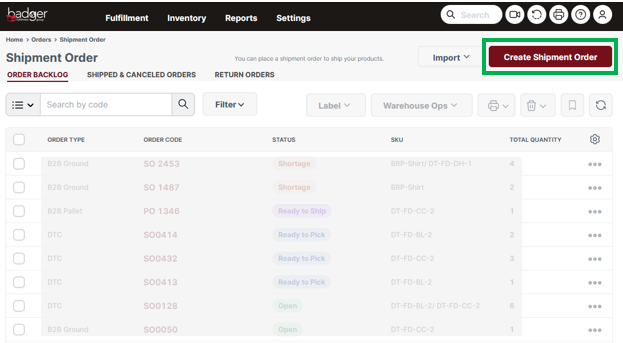
- Enter an Order Code, select Disposal/Expired from the Order Type dropdown menu, and then select Next Step. Date fields are not applicable, as the disposal order will only be processed after the Disposal Order Form has been submitted through the Help Center.
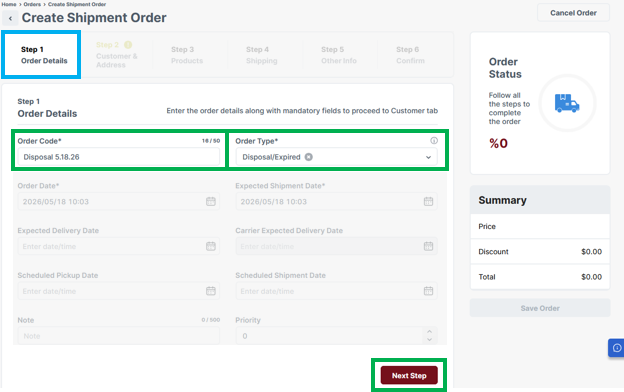
Order Code: Enter a unique order number. Recommended format: Disposal [date]
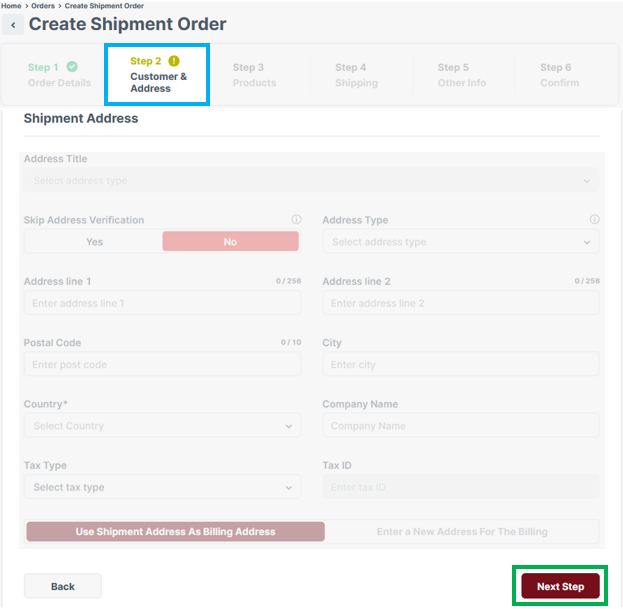
Order Type: Select Disposal/Expired from the dropdown menu. - Leave the Customer and Address fields blank, as the order will not be shipped. Select Next Step.
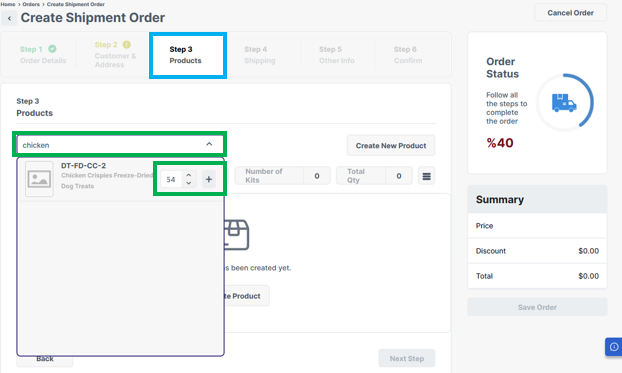
- Add all products intended for disposal to the order. In the search field, enter the product SKU-code or name, then enter the quantity to be disposed of and select the + icon to add the item to the order.
-
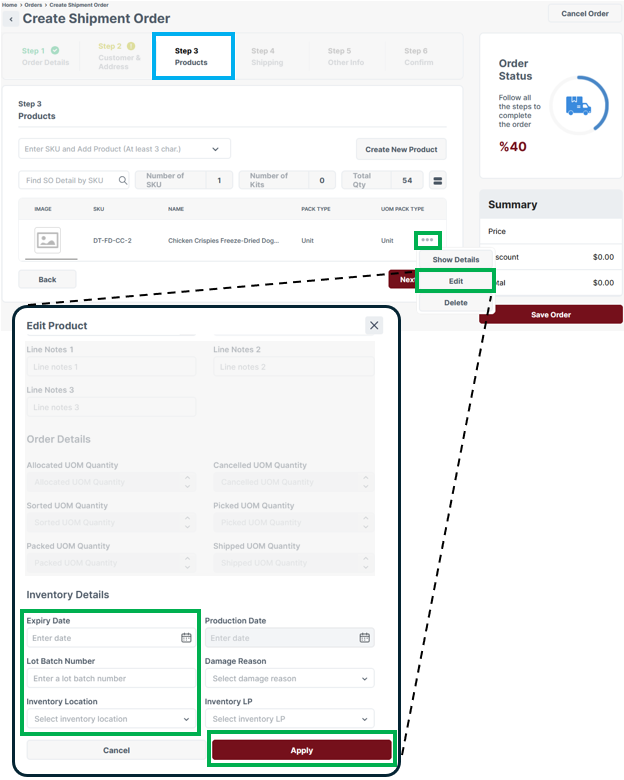
Once the item has been added to the order, specify the Inventory Details to ensure the correct inventory is allocated for disposal. To do this, select the three dots icon to the right of the product in the list, then select Edit.
Under Inventory Details, enter the Expiry Date, Lot/Batch Number, and/or Inventory Location as needed. This information can be found in the Inventory by Location report. Provide sufficient inventory detail to ensure the intended inventory is accurately allocated for disposal.
-
-
- Repeat the previous steps for each product inventory item intended for disposal.
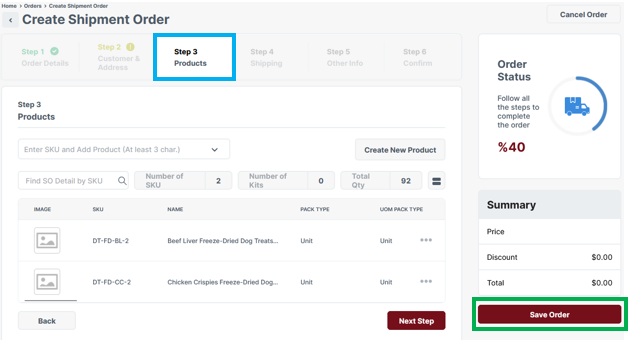
- Once all applicable products have been added to the order, select Save Order (no additional order info is needed to process the disposal).

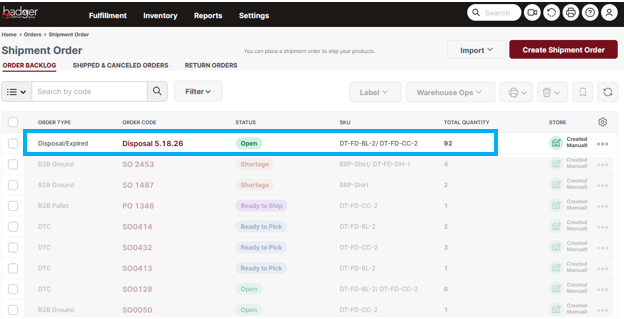
You have successfully created a disposal order. The order is now active in your Shipment Order Dashboard and ready for processing.
Remember to submit the Disposal Order Form under Operations in the Help Center to confirm your request with our team.
Disposal Pricing
Disposal orders are billed at the standard hourly warehouse labor rate based on the time required to process the disposal request.
If additional dumpster capacity or special waste handling is required, an additional disposal or dumpster fee may apply. Customers will be notified of any additional charges and provided approval details prior to processing the disposal order.
Disposal Processing Time
Disposal orders are typically processed within 3–4 business days after the disposal order has been entered in the Dashboard and the Disposal Order Form has been submitted. Processing times may vary depending on current disposal volume, warehouse workload, and dumpster availability or scheduling.