Contents
- Set Up Store Product-SKUs
- Confirm / Update the Primary Unit of Measure
- Add Pack Types (if applicable)
- Add Custom Declarations (international shipping)
- Bulk Update Products (optional)
- Set Up Store Kit-SKUs
After Products download from your store, you must complete the following steps in your Dashboard, prior to including the SKUs on any Purchase Order or Shipment Order.
For Product-SKUs:
-
Confirm / Update the Primary Unit of Measure.
-
Add Pack Types, if applicable.
- Add Custom Declarations, if you are shipping internationally.
For Kit-SKUs:
- Configure Kit SKU with components.
Set Up Store Product-SKUs
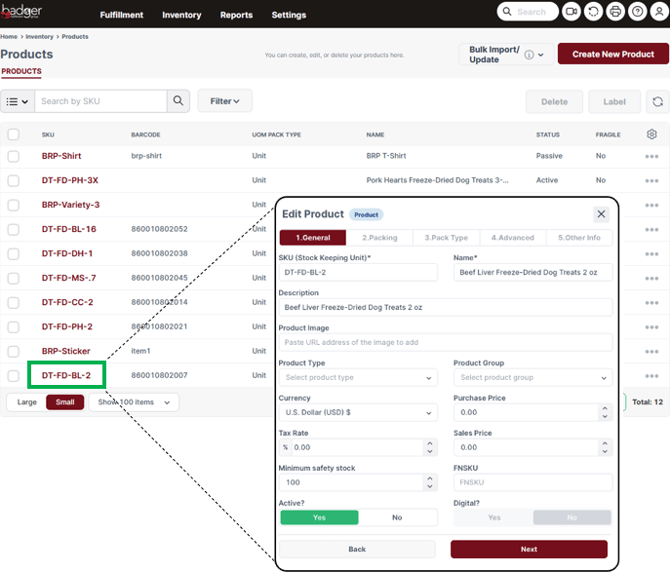
A Product-SKU represents a single physical item. By default, all SKUs sync to your Dashboard as category: Product (vs. Kit), and Primary Unit of Measure: Unit.
- Navigate to your Products Dashboard.
Dashboard -> Settings -> Products - Verify the Product has successfully synced. Input the SKU into the search field and select search, or manually find the SKU / Name in the list. Select the SKU to Edit.
Confirm / Update the Primary Unit of Measure
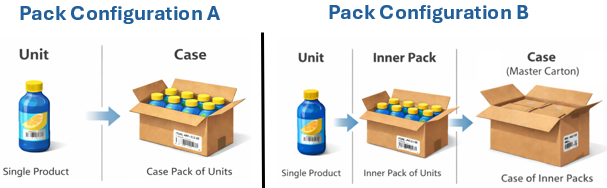
The Primary Unit of Measure (UOM) represents the smallest sellable quantity of your SKU, serving as the basis for all inventory counts. By default, all SKUs sync to your Dashboard with Primary UOM: Unit. If your selling SKU represents an 'Inner Pack' or a Case, the Primary UOM needs to be updated.
- Select the 'Pack Type' Tab.
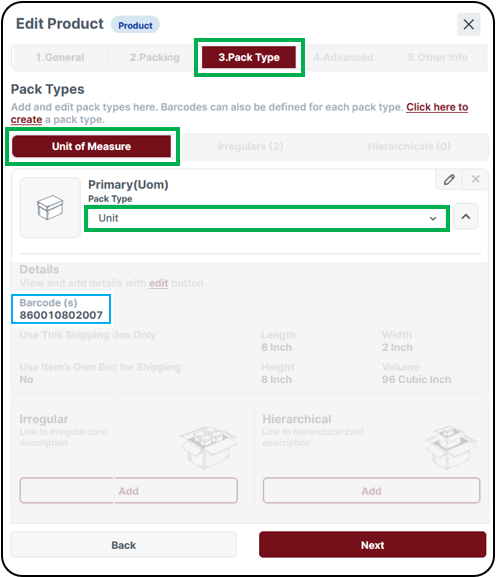
- Dropdown and select 'Primary (UOM)':
- Leave as Unit if the SKU represents a single item, that is not configured in its own cardboard box.
- Select Inner Pack if the SKU represents a case or "pack" that is master packed.
- Select Case if the SKU represents item(s) packed in a cardboard box (master carton).
- Dropdown and select 'Primary (UOM)':
- Select the 'Other Info' tab, and then select 'Save'.

You have successfully updated your Product's Primary Unit of Measure.
Add Pack Types
Set up Pack Types if your Product is physically packed in a consistent case or pallet configuration; this is important for inventory and order management. If your products are not packed in consistent case quantities (with case labels and case barcodes), you can skip this step.
To qualify for case and full-pallet fulfillment pricing, we recommend configuring your products in consistent Pack Types (with proper case labels).
To set up Pack Types:
-
The respective Pack Quantities must be consistent; you can set up one configuration per Pack Type.
- Cases must have a proper case label affixed to the outside of the package, containing a scannable case-specific barcode (the case barcode must be different than the barcode of the individual items inside).
- In the 'Pack Type' tab, select 'Add New Irregular Pack Type' under 'Irregulars'.
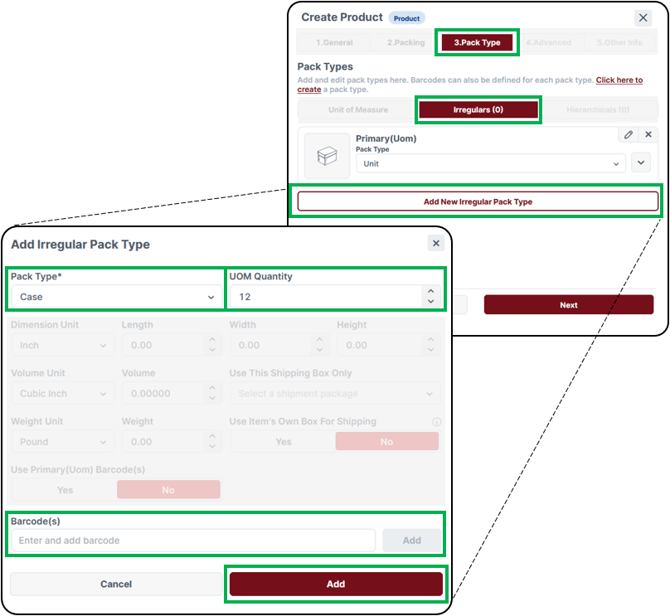
In the pop-up window:- Dropdown and select 'Pack Type*':
- Select Case if you are setting up a case-pack
- Select Pallet if you are setting up a full pallet configuration
- UOM Quantity: Enter the quantity of the Primary UOM contained in the Pack Type.
- For 'Case', add the case-specific barcode.
- Select Add
- If applicable, repeat these steps to add a 'Pallet' Pack Type.
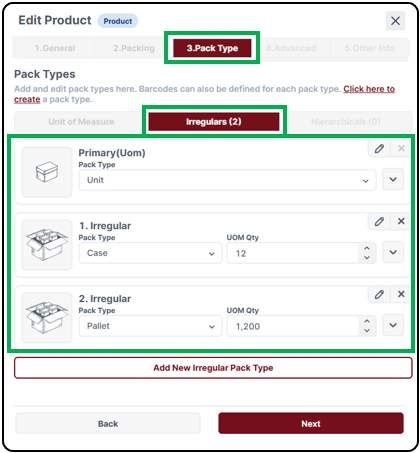
- Dropdown and select 'Pack Type*':
- Select the 'Other Info' tab, and then select 'Save'.
You have successfully set up your Product's Pack Types.
Add Custom Declarations
Product Custom Declarations are necessary for international shipping. If you are not shipping international, you can skip this step.
To generate an international shipping label, the following info must be specified for all applicable Products. If these items are missing, this will cause disruptions in your order fulfillment.
- Add Custom Declarations under the 'Advanced' tab.
- Declared Value
- HS Tariff Code (Harmonized System Code)
- Origin Country Code (2-digit Country Code)
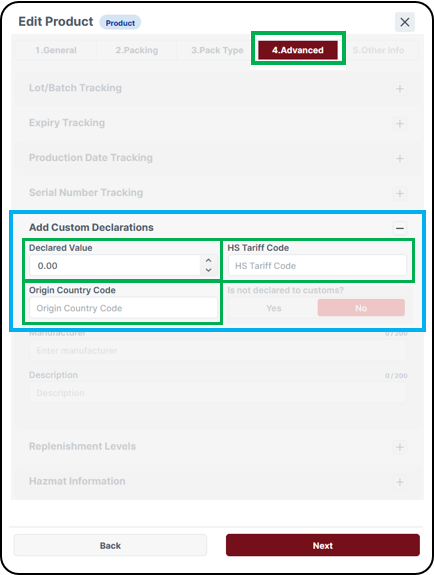
- Select the 'Other Info' tab, and then select 'Save'.
You have successfully added your Product's Custom Declarations.
Bulk Update Product-SKUs
If you need to update many new Product-SKUs, you have the option to update in bulk via Excel import template.
A) To bulk update Custom Declarations, download the Badger Bulk Update Products Template.
B) To bulk update Pack Types, download the Badger Bulk Update Product Pack Types Excel Template.
- Fill out the Excel template with necessary Product information.
- Navigate to the respective 'Bulk Import/Update' Dashboard
Dashboard -> Settings -> Products -> Bulk Import/Update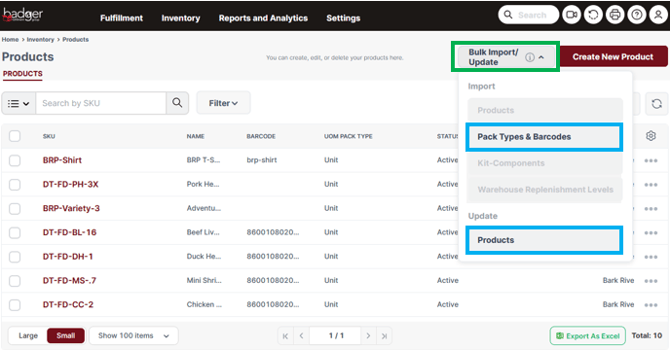
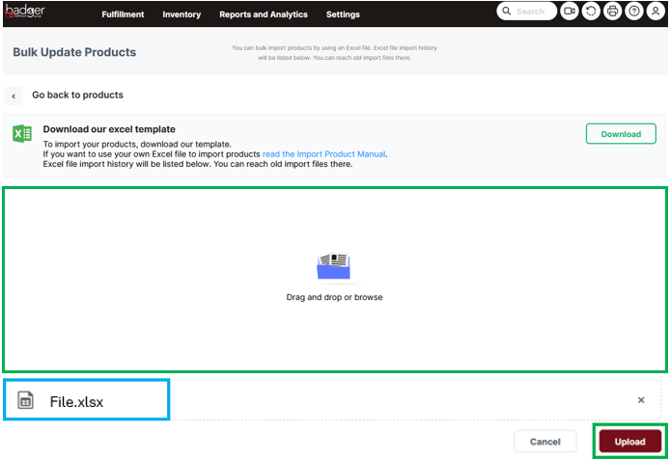
- Drag and drop your files in the window or click to browse. Your files will populate below. Select Upload, and then select Import on the next screen.
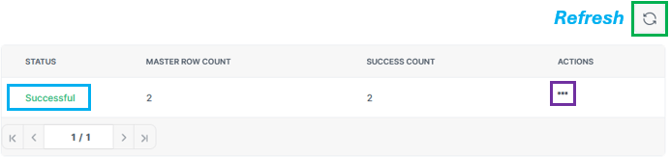
- View the import status in the lower window (you may need to select the refresh button). If the import is successful, the Status will show "Successful". If the import is unsuccessful, select the three dots -> Details, under 'Actions', to reference any error messages.
- Lastly, after any product import, double check the Products were properly updated in your Products Dashboard.
Set Up Store Kit-SKUs
A Kit-SKU represents a combination of Products ordered together. By default, all SKUs sync to your Dashboard as category: Product (vs. Kit). For Kits, you must update this designation and add components in your Products Dashboard by uploading a Kit Setup Excel file.
It’s important Kit SKUs are set up in your Dashboard prior to including on any Shipment Orders. Prior to setting up a new Kit-SKU, all component Product-SKUs must be created first, and exist in your Dashboard.
- Navigate to your Products Dashboard.
Dashboard -> Settings -> Products - Verify the Kit SKU has successfully synced to your Dashboard. Input the SKU into the search field and select search, or manually find the SKU / Name, in the list.
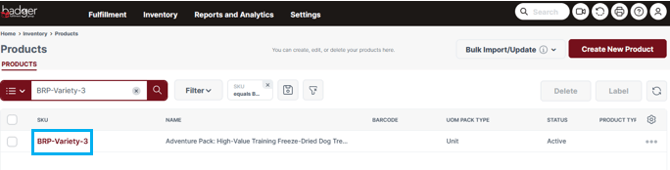
- Download the Badger Kit Setup Excel Template. You must use this template to update the existing Product Category to: Kit, and add components.
- Fill out the Excel Template with necessary Kit information. Fill out one row per Kit component; all data columns must be filled out. Multiple Kit-SKUs may be set up using one template file (include data on subsequent rows). Once all kit components and quantities are completely filled out, save the file.
Example: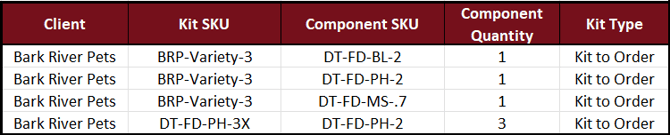
- Client: Enter your Dashboard Client Name.
- Kit SKU: Enter the SKU of the Kit.
- Component SKU: Enter the SKU of a Product.
- Component Quantity: Enter the Component-SKU quantity.
- Kit Type: Enter "Kit to Order".
- Navigate to the 'Bulk Import Kit-Components' Dashboard:
Dashboard -> Settings -> Products -> Bulk Import/Update - > Kit-Components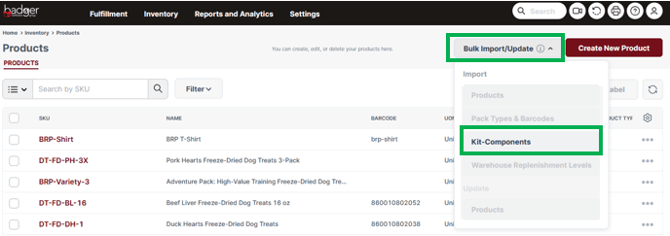
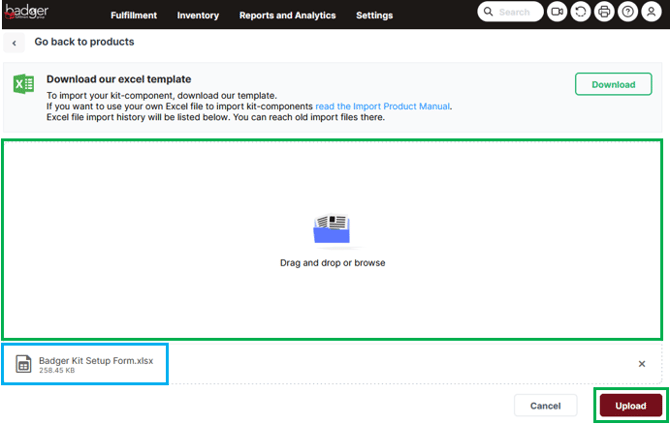
- Drag and drop your files in the window or click to browse. Your files will populate below. Select Upload, and then select Import on the next screen.
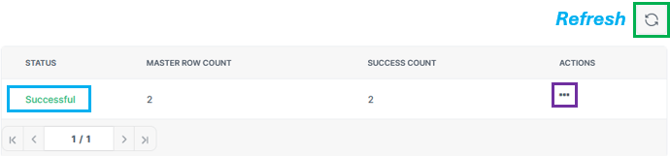
- View the import status in the lower window (you may need to select the refresh button). If the import is successful, the Status will show "Successful". If the import is unsuccessful, select the three dots -> Details, under 'Actions', to reference any error messages.
- Lastly, after any product import, double check the "Products" were properly updated in your Products Dashboard. For any affected kit SKU, pull up the "product page" and ensure the item category was successfully updated to, Kit (Type: Kit to Order).
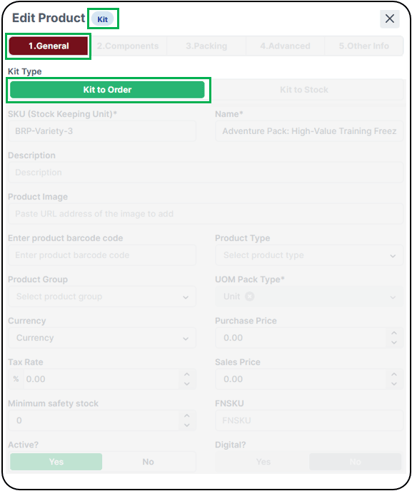
- Select the Components tab and double check complete and accurate Product details. Be sure to Save under the 'Other Info' tab, if you make any updates here.
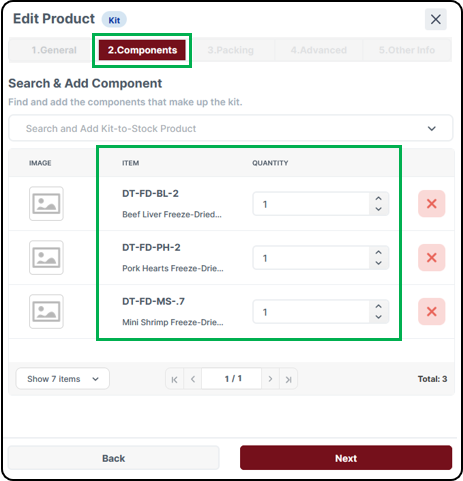
- Select the Components tab and double check complete and accurate Product details. Be sure to Save under the 'Other Info' tab, if you make any updates here.
You have successfully set up a Kit SKU in your Dashboard. You may now add this SKU to a Shipment Order at this time.
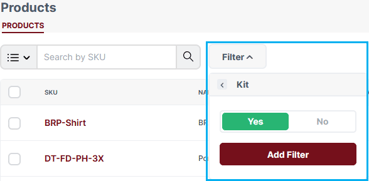
Tip: In your Products Dashboard, you can filter Kit items using the Filter button. Dropdown select 'kit', and toggle to 'Yes'. Select Add Filter. Now, you will only see Kit items in your Products Dashboard. To exit out of the filter, select the "x" on the active filter tab.