
Contents
Assign Shopify Orders to Badger
For Shopify orders you want Badger to fulfill, assign them to the Badger Location.
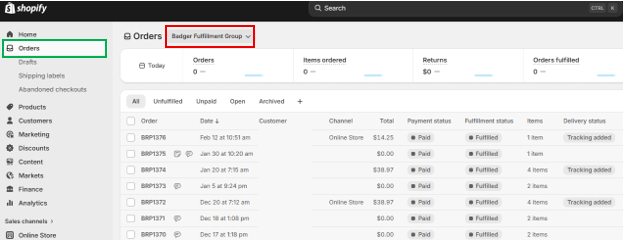
You can change the order fulfillment Location within the order page:
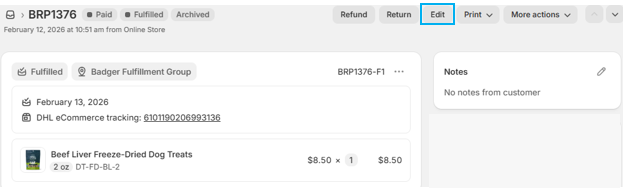
If you have multiple Shopify ‘Locations’, you can set Badger as the ‘Default Location’, to automatically route future orders placed on your website to Badger to get fulfilled.
Settings -> Locations
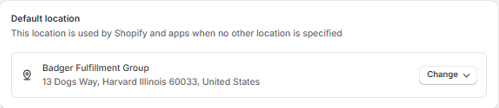
Shopify Order Processing
In Shopify, any order items with an ‘Unfulfilled’ status, assigned to the Badger Location will automatically sync to Badger's WMS and get processed. New orders sync within a ~15 minute period.
Once an order status is "Shipped" in your Dashboard, the master tracking number will sync to Shopify and the Shopify order status will automatically be updated to "Fulfilled".
If you do not want Badger to fulfill an order, do not assign any items in that order to the Badger Shopify fulfillment location.
If you do not want Badger to partially fulfill an order, ensure that all items in the order are assigned to the Badger fulfillment location.
For items to sync to Badger's WMS for fulfillment, the order line-item must contain the Product SKU.
Example Shopify order-item with a SKU:
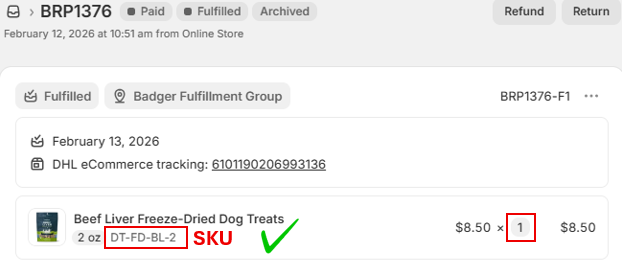
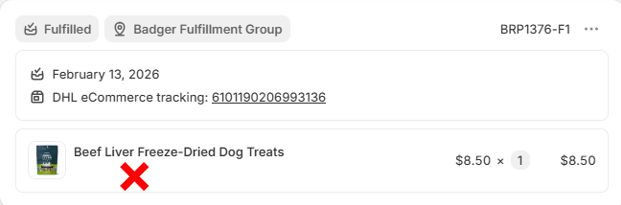
Example Shopify order-item missing a SKU:
After an order syncs to Badger's WMS:
- If you do not want Badger to proceed processing, you must either cancel the order in Shopify or cancel the order in your Dashboard.
- Updating the Fulfillment Status to "On Hold" in Shopify does NOT automatically put the order on hold in Badger's WMS; you must manually put the order on hold directly in your Dashboard to prevent Badger from processing.
- Changing the fulfillment Location or updating the Fulfillment Status to "Fulfilled" [in Shopify] does NOT remove the order in Badger's WMS; the order will still be processed by Badger unless properly cancelled in time.
Once all items assigned to the Badger fulfillment location have been fulfilled (order status shows as “Shipped” in your Dashboard), the order is considered closed.
Any changes made in Shopify after this point—including assigning additional items to the Badger location—will not sync to Badger's WMS under the original Shopify order number.
To have Badger fulfill additional items, you must either create a new order in Shopify or create a manual order in your Dashboard.