
Contents
Overview
Your Dashboard includes two reports for tracking customer order returns. Use the Return Orders report for a high-level view of returned orders and Return to Sender (RTS) shipments. For additional processing and product details, including return reason, damage reason, and lot/batch or expiry information (when applicable), use the Receiving History report filtered by Receiving Type = Return.
Return Orders Report
The Return Orders report in your Dashboard displays customer returns and Return to Sender (RTS) shipments received at Badger's warehouse.
To access the report:
Dashboard → Inventory → Return Orders
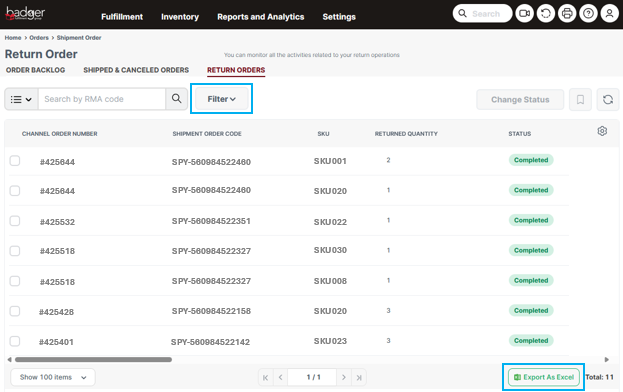
Use this report to view return information, including the original store Order Number, SKU, Returned Quantity, Customer Name, and Return Status.
The report displays one line per returned SKU.
Use the Filter button to search for specific orders, customers, products, or return statuses.
To export the report, select Export as Excel from the bottom toolbar.
Receiving History Report
For additional return details, use the Receiving History report in your Dashboard.
To access the report:
Dashboard → Inventory → Receiving History
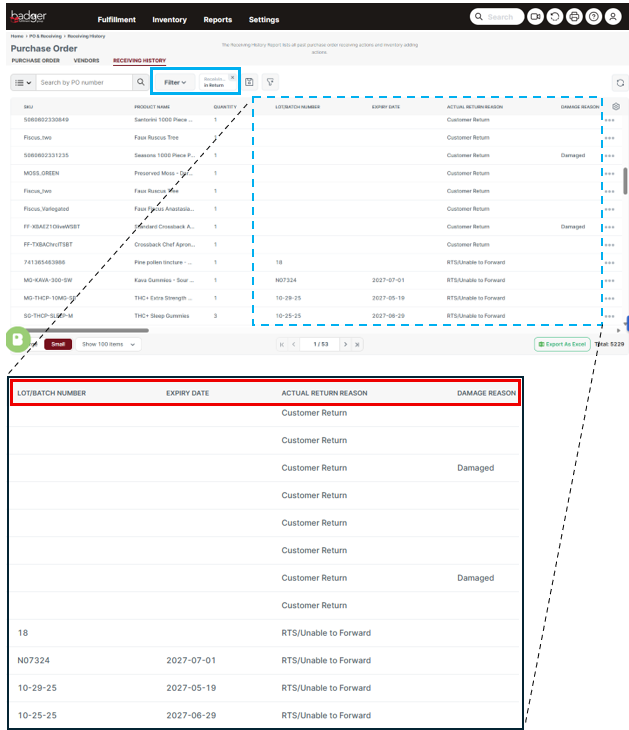
To view only customer returns and RTS shipments, apply the following filter:
- Receiving Type = Return
The filtered report includes additional information not available in the Return Orders report, including:
- Return Reason (Customer Return or Return to Sender)
- Damage Reason, indicating whether a returned product was determined to be damaged or otherwise unsuitable for return to inventory.
- Product details, including Lot/Batch Number and Expiry Date, when applicable