Contents
Your Dashboard is where you manage products, inbounds, inventory, and fulfillment: set up SKUs, receive products via Purchase Orders, view inventory, enter manual orders, and more. Browse Help Center articles for tutorials.
Menu
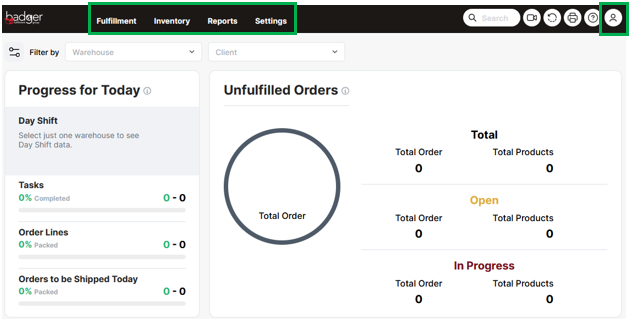
Fulfillment: Manage outbound orders and project work orders ("Shipment Orders")
Inventory: Manage receiving orders ("Purchase Orders") and view inventory reports
Reports: View additional operational reports (receiving, inventory, orders, and shipments)
Settings: Manage products (SKUs) and view Billing Report
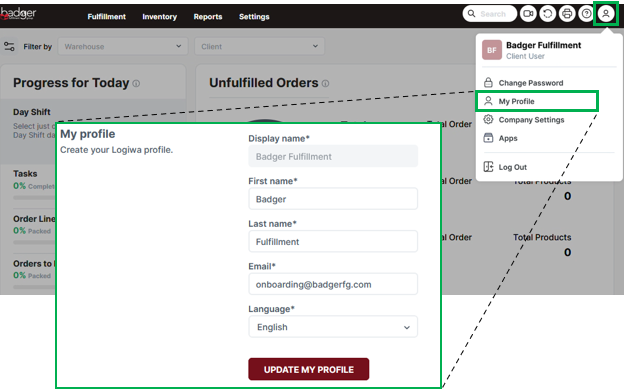
User Icon (upper right): Change password, user name, and login email.
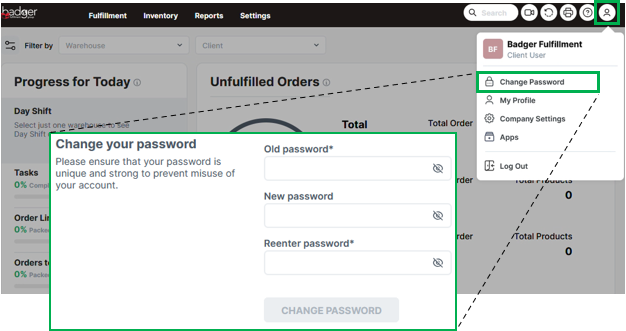
Change Password
Update your password after logging in for the first time.
Dashboard → User icon → Change Password
Tips
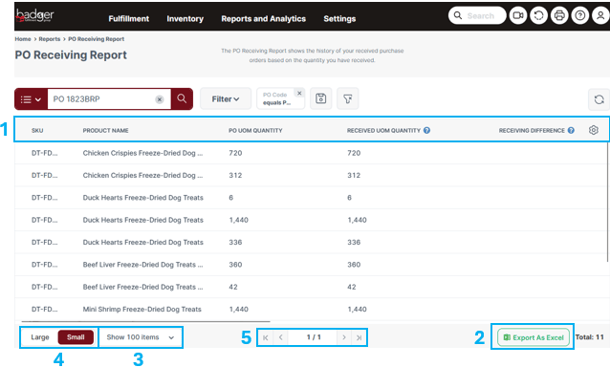
- You can customize your Dashboard views by dragging and dropping the data column headers to rearrange each screen. Your browser will automatically save these changes.
- Export data to an Excel file by selecting the Export As Excel button on the bottom toolbar.
- By default, the Dashboard shows up to 100 line items per page; expand this quantity from the dropdown on the bottom toolbar.
- Change the Dashboard display sizing.
- Navigate multiple pages.
Search
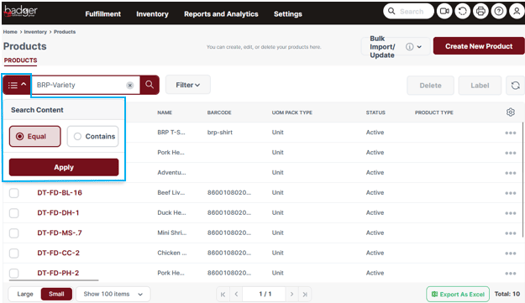
When using the search bar, select Equal or Contains from the dropdown menu on the left to determine whether the search results should match the text input exactly or partially.
Filter
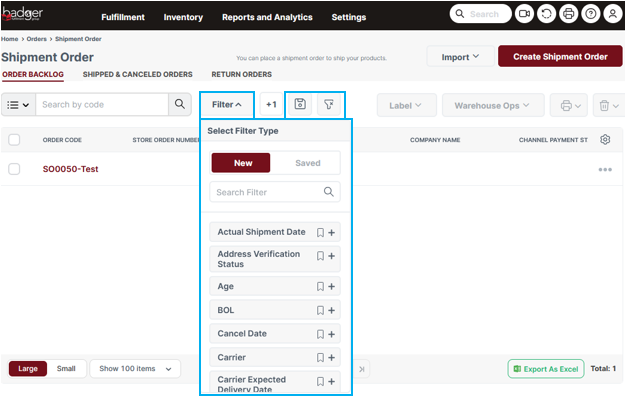
Utilize the Filter dropdown to the right of the search bar to filter Dashboards by specific data inputs (filter criteria will differ per Dashboard). Once a filter is applied, save or clear the filter using the icons to the right.