
Contents
Track Inbound Shipment
Use the shipping tracking # or freight Bill of Lading # to view the delivery status of your inbound shipment, on the carrier website (a login is not required to view transit updates via carrier websites); Badger does not notify clients when a shipment is delivered.
Product Receipt Lead Time
Once the shipment is delivered, products will automatically be checked-in to inventory, received against the Purchase Order entered in your Dashboard.
Products are typically received and put away (available for order fulfillment) within the following times:
New SKUs (being received for the first time)
- 1-10 SKUs: 3 business days
- 11-50 SKUs: 4 business days
- >50 SKUs: 4-5 business days
Existing SKUs (previously received)
- 1-20 SKUs: 2 business days
- 21-50 SKUs: 3 business days
- >50 SKUs: 3-5 business days
Additional receiving time may be required for the following:
- Missing, inaccurate, or incomplete Purchase Order.
- Barcode, labelling, or scannability issues.
- Mixed SKU or mixed Expiration / Lot boxes or pallets
- Pallet height exceeding 55 inches
- Excessive receipt quantity discrepancies
- Product damages
- Full Container Load (Floor Loaded Freight)
- Holidays / Peak Season (Oct 1st - January 31st)
View Receipt Activity in Your Dashboard
View Purchase Order Status
Dashboard -> Inventory -> Purchase Orders
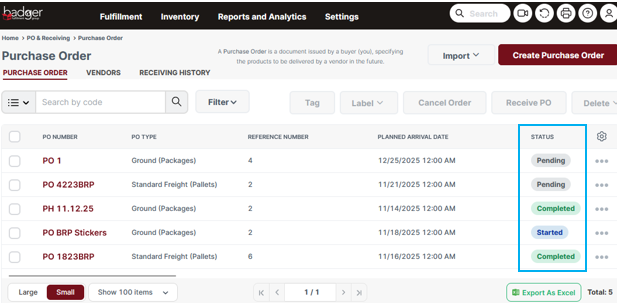
PO Status:
- Pending: receiving has not been started
- Started: receiving has been started
- Completed: receiving has been completed
- Cancelled: PO has been cancelled
View PO Receiving Report
Review the PO Receiving Report in your Dashboard to see Product receipt quantity. Once a Purchase Order status is "Completed", clients will be emailed a confirmation including an Excel copy of the Dashboard PO Receiving Report.
Dashboard -> Reports and Analytics -> PO Receiving Report
Input a PO Number in the search field and select search (eyeglass icon).
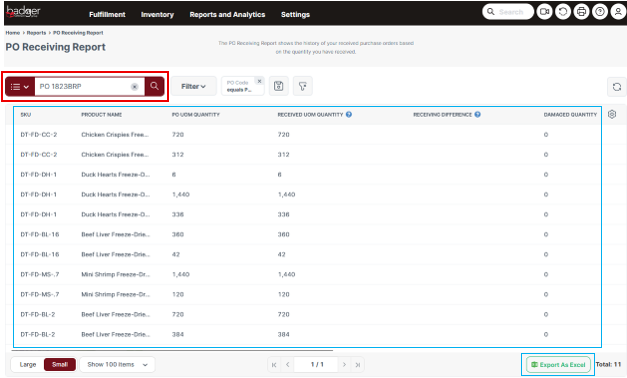
- PO UOM Quantity: the total "base" Unit of Measure quantity, expected for receipt.
- Received UOM Quantity: the total "base" Unit of Measure quantity, received by Badger.
- Receiving Difference: the difference in quantity between what was expected for receipt and what was actually received by Badger.
- Damaged Quantity: the quantity of product received in a damaged condition.