
Contents
Overview
Use the receiving tools in your Dashboard to track the status of inbound Purchase Orders and review completed receiving activity.
First, monitor the status of your Purchase Orders to see whether receiving has started or been completed. Once receiving is complete, use the PO Receiving Report to compare expected and received quantities, identify any shortages, overages, and damaged inventory. For additional receipt details, including lot/batch numbers, expiry dates (when applicable), storage locations, and product condition at receipt, use the Receiving History Report.
After a Purchase Order has been fully received, a confirmation email is automatically sent to your designated operational contacts and includes an Excel copy of the PO Receiving Report.
View Purchase Order Status
Navigate to:
Dashboard → Inventory → Purchase Orders
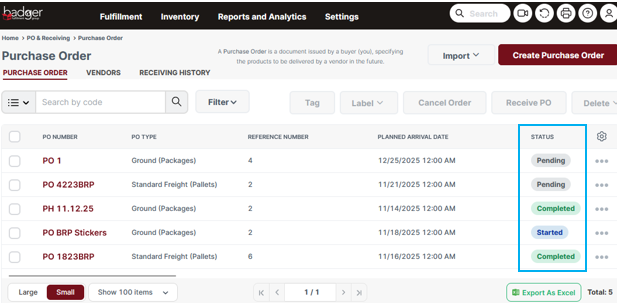
The Status column indicates the current receiving progress for each Purchase Order.
| Status | Description |
|---|---|
| Pending | Receiving has not yet started. |
| Started | Receiving is currently in progress. |
| Completed | Receiving has been completed. |
| Cancelled | The Purchase Order has been cancelled. |
View the PO Receiving Report
The PO Receiving Report provides a summary of quantities expected and received for each Purchase Order.
Navigate to:
Dashboard → Reports → PO Receiving Report
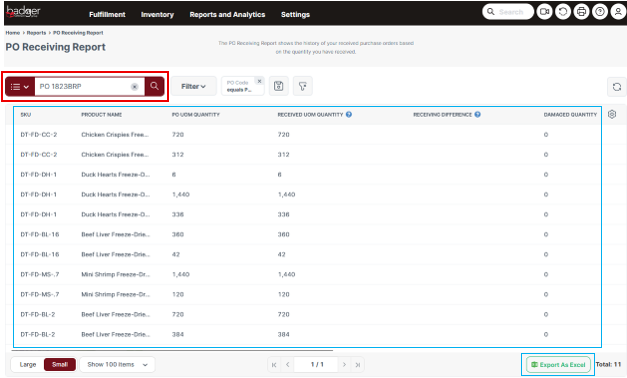
- Enter the PO Number in the search field.
- Select the Search (magnifying glass) icon.
- Review the receiving summary for the Purchase Order.
The report includes the following information:
- PO UOM Quantity — The total base Unit of Measure quantity expected to be received.
- Received UOM Quantity — The total base Unit of Measure quantity received by Badger.
- Receiving Difference — The difference between the expected quantity and the quantity actually received.
- Damaged Quantity — The quantity received in a damaged condition or with barcodes that were out of specification.
To download the report, select Export As Excel from the bottom toolbar.
View Receiving History Report
The Receiving History Report provides detailed information about each product received into inventory. In addition to received quantities, this report includes inventory-specific details such as Lot/Batch Number, Expiry Date, storage location, and whether inventory was received in a damaged or barcode out-of-spec condition, making it useful for auditing individual receipts and inventory records.
Navigate to:
Dashboard → Reports → Receiving History
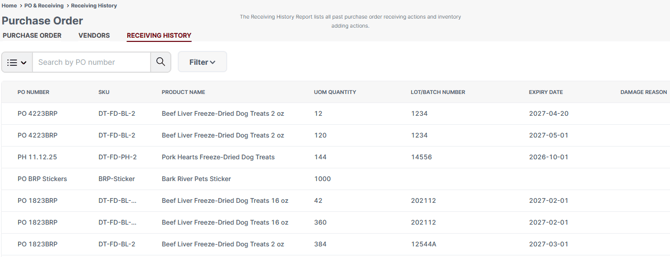
- Enter a Purchase Order Number or use the available filters to locate the receipt.
- Select the Search (magnifying glass) icon.
- Review the receiving details for each product received.
The report includes the following information:
- Purchase Order Number — The Purchase Order associated with the receipt.
- Receipt Date — The date inventory was received into the warehouse.
- SKU — The product received.
- Received Quantity — The quantity received into inventory.
- Damage Reason— Indicates whether the inventory was received in a damaged condition or with a barcode that was out of specification, preventing it from being received as available inventory.
- Lot/Batch Number — The assigned lot or batch number, when lot tracking is enabled.
- Expiry Date — The product expiration date, when expiry tracking is enabled.
- Location — The warehouse storage location where the inventory was received.
To download the report, select Export As Excel from the bottom toolbar.