
Contents
- How to enter a Logiwa shipment order?
- Store Connected Orders
- Order Category (D2C vs. B2B)
- Standard Order Fulfillment Guidelines
- Order Allocation
- Order Operation Status
- Order Processing
- What to do if my order is not in Started Operation Status?
- Order Cancellation
- Order Modification
- Order Hold
- Address Update
- Order Tracking
- Third Party Shipping Account
How to enter a Logiwa Shipment Order?
- Automatic sync from online store connection (e.g. Shopify, WooCommerce)
- Manual order entry via Logiwa Shipment Order screen (one order at a time)
- Manual bulk order upload via Logiwa bulk order upload Excel form (multiple orders at once)
Refer to the Logiwa section on this knowledge base for step-by-step instructions on how to enter a manual shipment order.
Badger Order Terminology
"Store-connected Order": an order entered within online store (e.g. Shopify, WooCommerce) that automatically syncs to Logiwa WMS. Order modifications and cancellations should be made directly within online store (when operation status allows); updates will automatically push to Logiwa.
"Manual Order": an order manually entered directly into Logiwa via Shipment Order screen or utilizing the bulk order upload Excel form; these orders are not "connected" to an online store. Order modifications or cancellations need to be made directly in Logiwa (when operation status allows).
Store Connected Orders
Order details automatically sync with Logiwa's order operations approximately every 10 minutes. Any order updates made through store, including cancellations, are reflected in Logiwa within the same period. Once synced, orders immediately attempt to allocate; upon syncing, Badger assumes an order is ready to be picked, packed, and shipped. Once an order is marked shipped in Logiwa, carrier tracking number will be communicated to the online store, and the order will get marked "fulfilled".
Orders not requiring fulfillment by Badger must not be entered or logged within connected online store, as they will sync to Logiwa for order processing.
Order Category (D2C vs. B2B)
- D2C (Direct to Consumer): orders consisting of ~10 or less items and/or shipping to a residential address (ground shipping only).
- B2B (Business to Business): orders consisting of more than ~10 items and/or shipping to a commercial address (ground or freight shipping).
Standard Order Fulfillment Guidelines
Badger defines standard order fulfillment under the following criteria:
- Unit pick, pack, & ship: units are picked and packed into shipper boxes with no special labelling, documents, or pack instructions/configurations.
- Case pick, pack, & ship: "ship-ready" cases are picked and packed into shipper boxes (if necessary), with no special labelling, documents, or pack instructions/configurations.
- Pallet build: "ship-ready" cases are picked and consolidated onto pallets, with no special pack instructions/configurations. Same SKU/batch product is typically grouped together. Pallets are built to a max height of 72". Retailer pallet label(s) are applied to outside of wrapped/ship-ready pallets. Print-ready labels uploaded to Logiwa Shipment Order upon order entry, or provided upon BOL submission.
- B2B case labelling: applying one retailer case label and/or third party shipping label to ship-ready cases (for ground or pallet orders). Print-ready labels uploaded to Logiwa Shipment Order upon order entry (Examples: Amazon, Chewy, Target, etc.).
- B2B carton packing with carton labels: packing ship-ready cases into larger cartons according to supplied retailer/shipping carton labels. Retailer case labels must contain accurate product description(s) and quantities, and shipping label must specify available box size dimensions. Print-ready case labels uploaded to Logiwa Shipment Order upon order entry.
- International Shipping Documents: 2x copies of each attachment (e.g. commercial invoice, certificate country of origin etc.) will be printed and applied to outside of lead carton or lead pallet. Print-ready documents uploaded to Logiwa Shipment Order upon order entry, or provided upon BOL submission.
A Logiwa Shipment Order may classify as a "Project Order" or "Work Order" if order requirements fall outside the above guidelines.
An order requiring special processing instructions or attention may classify as a "Project Order" and may be subject to additional project fees, including a project minimum. See Project section of knowledge base.
Project activities may include (and are not limited to):
- Unit labeling / barcoding
- Case barcoding
- Case labelling, other than standard outbound retailer / shipping labels
- Special packing instructions or case-pack configurations (kitting / bundling)
- Poly-bagging
- Product inserts
- Item assembly
- Custom packaging assembly: flat, die-cut boxes that are assembled with self-closing tab-design (i.e. kit or subscription boxes).
Project order instructions need to be submitted via the Work Order Ticket (see Work Order Submission article).
Order Allocation
Product is allocated on a FIFO/FEFO basis:
- FIFO ("First in first out"): for product that does not have an expiration date; the first product received in to inventory is the first product shipped out.
- FEFO ("First expiration, first out"): for products containing an expiry date; the product with the earliest (oldest) expiration is the first shipped out.
Upon upload/entry into Logiwa, orders immediately attempt to allocate. Once fully allocated (Started status), orders will be available for processing.
Product Expiry
Product will allocate to orders all the way up to the day of expiration.
It is the customer's responsibility to actively review inventory reports and submit inventory hold requests as necessary (system automation for putting expired or approaching expiration on hold is not supported). Product put on hold will not allocate to orders. Orders will not allocate to expired product unless the Expired Shipment Order Type is used (use with caution*).
Order Operation* Status
In Logiwa WMS, view Order Operation* Status in Shipment Order screen under Order Management.
WMS->Order Management->Shipment Order->Select Search (green eyeglass icon)
Use filter criteria on search screen as desired:
- Shipment Order Code / Customer Order No
- Order Date*
- Customer [Name]
- Carrier Tracking Number
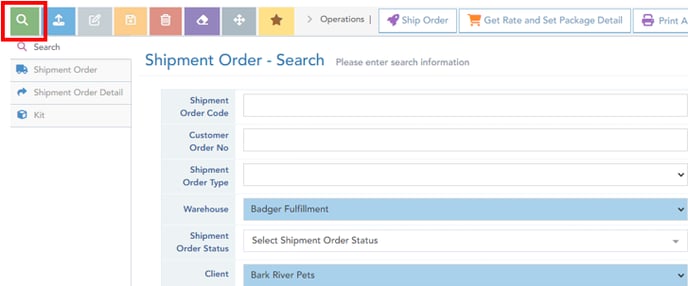
Be sure to check Operation Status before making any changes to active orders (see cancellation/modification scenarios below).
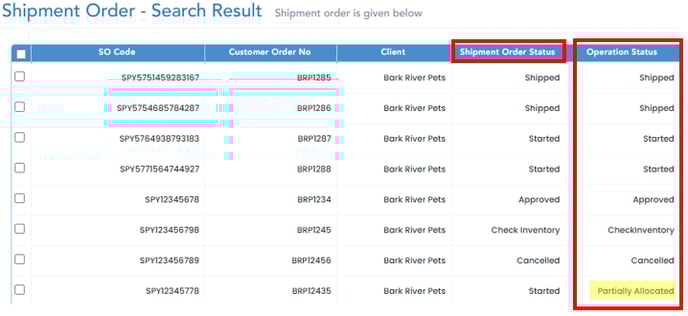
The 'Shipment Order Status' mimics 'Operation Status' for all statuses except "Partially Allocated". Operation Status is only viewable in Shipment Order search-result screen; 'Operation Status' is not editable.
Shipment Order Status field is automatically updated and should only be changed by the customer when operation status allows, for the following actions:
- Put order on Freeze / On Hold status
- Take order off Freeze / On Hold Status
- Manually cancel an order
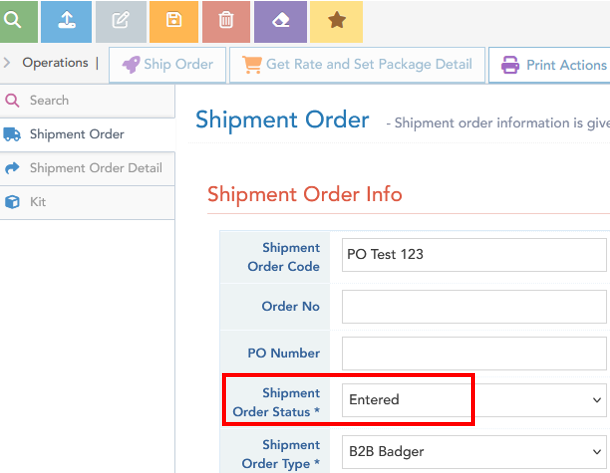
Order Operation Statuses explained:
- Entered: Default order status upon creating manual order via Logiwa Shipment Order screen (Do Not Change, leave as: Entered)
- Started: Order is fully allocate ready for processing (only orders in Started status will be started and processed).
- Partially Allocated: Not all order items have fully allocated.
If there is sufficient available free quantity in Inventory Report for the shorted items, wait for system allocation/replenishment (automatically triggered throughout working day); no action required*.
- Check Inventory: No order items have allocated.
If there is sufficient available free quantity in Inventory Report for the shorted items, wait for system allocation/replenishment (automatically triggered throughout working day); no action required*.
- Approved: Order is not allocated and is open for editing or cancellation.
- Picked: All order items/quantities have been picked.
- Packed: All order items/quantities have been packed.
- Shipped: Order has been fully processed in Logiwa (operational status only; does not necessarily mean order has physically shipped yet*)
- Cancelled: Order has been cancelled.
- Freeze / On Hold: Order is On Hold; order will not be processed until taken Off Hold, by customer. To take an order Off Hold, update order status to Approved (do NOT update to Started).
Search and filter orders by these order statuses in Shipment Order screen.
Order Processing
When will orders start getting fulfilled (D2C)?
Once product is received, and orders are fully allocated (inventory is available to fulfill entire order), orders will start getting processed; orders ready for processing will have a Logiwa Operation Status: Started. Orders that are synced/entered into Logiwa before 12:00pm CT, and are fully allocated, typically ship same day.
Orders synced or uploaded to Logiwa are considered final, and should seldom require modification or intervention.
Orders that are not finalized or ready for order fulfillment should not be uploaded or synced to Logiwa.
Only orders in Started Operation Status will be started and processed. Partially allocated orders will not be processed.
What to do if my order is not in Started Operation Status?
WMS->Order Management->Shipment Order->Select Search (green eyeglass icon)
Use filter criteria on search screen as desired:
- Shipment Order Code / Customer Order No
- Order Date*
- Customer [Name]
- Carrier Tracking Number
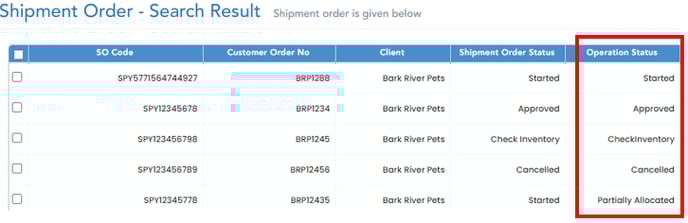
|
Order Operation* Status |
Description |
Customer Action |
|
| Started | All order items successfully allocate | No action required; order is ready for processing. | |
| Partially Allocated | Not all order items fully allocate |
Check shipment order details to view shorted items/quantities. Verify there is no available (free) inventory on hand in Logiwa inventory report. If there is zero free quantity in inventory for the shorted items, customers can: a) remove "shorted" item-quantities from order within online store (updates will automatically update to Logiwa) b) manually remove "shorted" item-quantities in Logiwa Shipment Order screen c) wait for product to be received and all order items successfully allocate. If there is sufficient available free quantity in inventory for the shorted items, wait for system allocation/replenishment (automatically triggered throughout working day); no action required*. |
|
| Check Inventory | No order items allocate |
Verify there is no available (free) inventory on hand in Logiwa inventory report. If there is zero free quantity in inventory for the order items, customers can: a) cancel order within online store (updates will automatically update to Logiwa) b) manually cancel order in Logiwa Shipment Order screen (change Shipment Order Status to: Cancelled) c) wait for product to be received and all order items successfully allocate. If there is sufficient available free quantity in inventory for the shorted items, wait for system allocation/replenishment (automatically triggered throughout working day); no action required*. |
|
| Approved | Order has been "opened" for order edits | Make any necessary order updates. Order may be cancelled or put On Hold at this time. |
How to view/edit "shorted" order-item quantities?
WMS->Order Management->Shipment Order->Select Search (green eyeglass icon)
Use filter criteria on search screen as desired:
- Shipment Order Code / Customer Order No
- Order Date*
- Customer [Name]
- Carrier Tracking Number
Select desired order line to view order details:
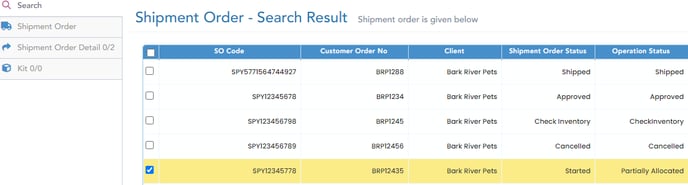
Select Shipment Order Detail tab (on left) to view order item info; "Allocated SKU Quantity" is shown on the right:

Before removing "shorted" item quantities, verify there is zero free quantity on hand for those items in Logiwa Inventory Report. If there is sufficient inventory on hand - system will automatically generate replenishment/allocation (no action required).
For store-connected orders, shorted item quantities should be removed from the order directly within online store; updates will automatically sync to Logiwa.
To manually remove/delete the order-item directly in Logiwa, select the item and then select the delete button (red icon, upper left):
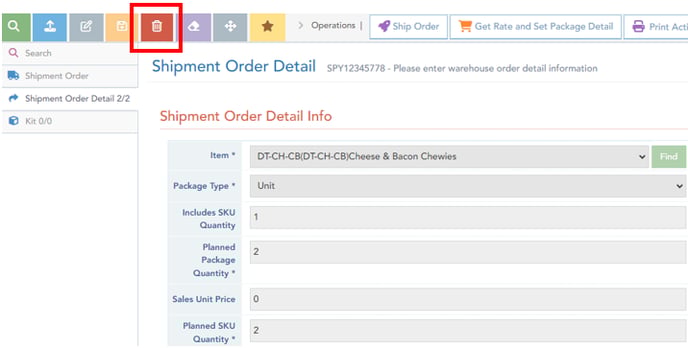
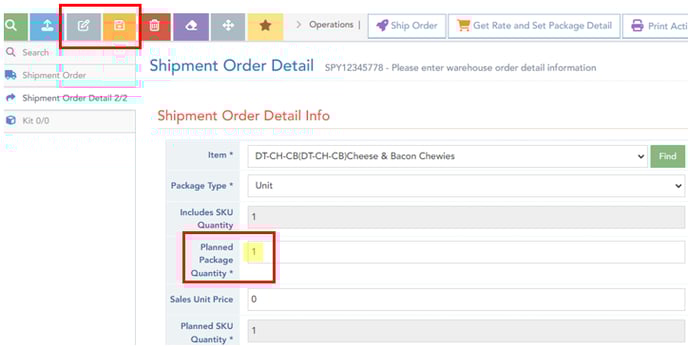
For manual order edits made directly in Logiwa: if an order item is partially allocated, the item quantity can only be reduced down to the allocated quantity. In the example below, the "Cheese & Bacon Chewies" item can only be reduced to QTY 1 (since quantity 1 successfully allocated).

To manually edit an order item directly in Logiwa, select the item, then select the edit button (grey icon), update the Planned Package Quantity*, and select save (orange icon).
For store-connected orders, modifying an order in Logiwa will not update the order in e-commerce store. It is preferred orders are modified directly in store, as this update will automatically sync to Logiwa.
How to tell if my order has been processed?
For ground orders
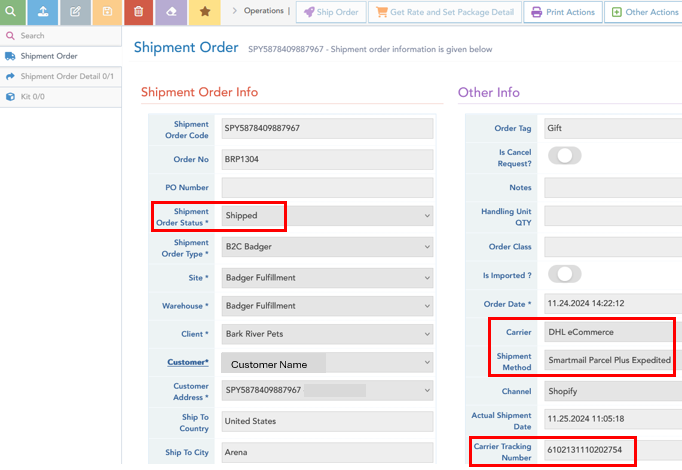
View order status and carrier/tracking information in Logiwa Shipment Order screen.
WMS->Order Management->Shipment Order: Search for order (green eyeglass icon)
An order has been processed once order status shows Packed or Shipped, and tracking information is available. Although Logiwa Shipment Order Status may show Shipped, package may not have physically been picked up by carrier yet. Refer to shipment tracking information to view shipment transit status (ground shipments marked Shipped, are typically picked up same day).
For pallet orders, use BOL receipt as order pickup confirmation (see Shipping Section).
Order Cancellation
Before cancelling an order in e-commerce store, or manually in Logiwa, be sure to check Badger's Order Operation Status in Logiwa shipment order screen:
An order in any of the following operation statuses may not be cancelled:
- Picked (or Partially Picked)
- Packed (or Partially Packed)
- Shipped
Do NOT cancel an order in one of the above order statuses, as doing so may cause system operation discrepancies which may lead to inventory errors and/or mis-ships.
Store-Connected Orders (e.g. Shopify, WooCommerce)
For store-connected orders, orders should be cancelled directly through online store; order will automatically be unallocated and cancelled in Logiwa (ticket submission not necessary). Prior to cancelling order in store, ensure Logiwa order operation status is none of listed above. Allow ~10 min for cancelled status update in Logiwa. Do NOT put order on Freeze / On Hold status in Logiwa, as store cancellation will no longer sync.
If an order was [previously] put on Freeze / On Hold status in Logiwa- the order must be manually cancelled directly in Logiwa Shipment Order screen (even if order is cancelled within online store).
Orders not requiring fulfillment by Badger should not be entered or logged within connected online store, as they will sync to Logiwa for order processing.
Manual Order Cancellation (Directly in Logiwa)
For store-connected orders, cancelling an order in Logiwa will not cancel the order in e-commerce store. It is preferred orders are cancelled directly in store, as this update will automatically un-allocate and cancel the order in Logiwa (no ticket submission necessary).
For orders in a "non-allocated status" (Check Inventory, or Approved), cancel the order by changing Shipment Order Status to: Cancelled (ticket submission not necessary).
In Shipment Order screen, select Edit button (grey icon, upper left). Dropdown-select Shipment Order Status* to Cancelled. Select Save button (orange icon, upper left); the order is now successfully cancelled, and will not be processed.
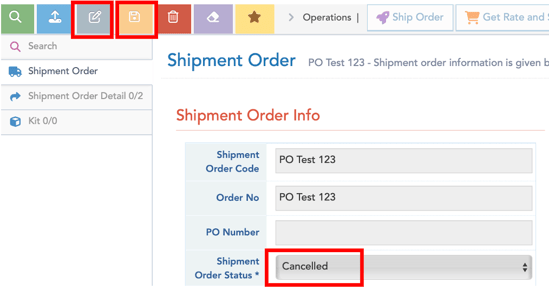
For orders in an "allocated status" (Started or Partially Allocated), submit Help Request ticket (Category: Order Processing).
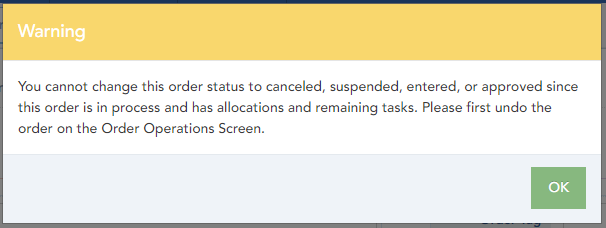
Customers will not be allowed to cancel an order in Logiwa if the order status does not allow. An error message will display (below), and the customer may need to submit the Help Request ticket (as long as order operation status in none of the following: Partially Picked, Picked, Partially Packed, Packed, Shipped).
Note: excessive order cancellation requests may incur admin fees.
Order Modification
Before modifying an order in ecommerce store, or directly in Logiwa, be sure to check Badger's order operation status in Logiwa shipment order screen (described above).
An order in any of the following operation statuses may not be modified:
- Picked (or Partially Picked)
- Packed (or Partially Packed)
- Shipped
Do NOT modify an order in one of the above order statuses, as doing so may cause system operation discrepancies which may lead to inventory errors and/or mis-ships.
For store-connected orders (e.g. Shopify, WooCommerce), order modifications should be made directly through online store; order updates will automatically sync to Logiwa (ticket submission not required). Verify updates in Logiwa Shipment Order screen. Prior to modifying order in store, ensure Logiwa order operation status is none of listed above.
For manual orders in Partially Allocated status, only "shorted" item quantities may be removed by customer via Shipment Order screen; additional items may be added or existing quantities increased at this time (ticket submission not necessary).
For manual orders in Check Inventory or Approved status, make necessary order updates via Shipment Order screen (ticket submission not necessary).
For manual orders in Started status, submit Help Request ticket (Category: Order Processing) to remove or reduce any items/quantities. Items may be added or existing quantities increased at this time (ticket submission not necessary).
When modifying order items/quantities directly in Logiwa, be sure to remove/reduce any quantities before adding/increasing quantities. Once any new item is added or a quantity is increased, the order will attempt to allocate, and further editing may be prohibited.
Customers will not be allowed to modify an order in Logiwa if the order status does not allow. An error message will display (below), and the customer will need to submit the Help Request ticket (as long as order operation status in none of the following: Partially Picked, Picked, Partially Packed, Packed, Shipped).
All manual order updates are to be executed by the customer in Logiwa. After ticket submission, the Account Manager will review and if available, "open" the order for the customer to edit. Order will appear in Approved status. Once approved, order updates should be executed by customer as soon as possible, as the order may automatically re-allocate after a period.
Note: excessive order modification requests may incur admin fees.
Order Hold
An order placed On Hold in Logiwa (Freeze / On Hold Status) will not be processed until taken Off Hold, by client.
Upon entry/sync into Logiwa, orders immediately attempt to allocate. For orders that are in an allocated status (Partially Allocated or Started), and are put On Hold, allocated inventory quantities are also put On Hold. This may affect available picking bin inventory.
The Logiwa order hold function is reserved for one-off, temporary order holds, when necessary. Allocated orders placed on hold for an extended period of time may affect allocation for other [future] orders.
For store-connected orders, once and order is placed On Hold in Logiwa, order updates executed in store (including cancellation), will no longer automatically sync to Logiwa (even if order is put back to Approved status). If an order is currently On Hold, or was previously put On Hold in Logiwa, updates made within the store must manually be executed in Logiwa. For this reason, orders should NOT be put on Freeze / On Hold status, for the purpose of allowing store updates to sync. Allow ~10 min for order updates/cancellation to sync to Logiwa.
Before placing an order on hold in Logiwa, be sure to check Badger's Order Operation Status in Logiwa shipment order screen:
An order in any of the following operation statuses may not be put On Hold:
- Picked (or Partially Picked)
- Packed (or Partially Packed)
- Shipped
Do NOT place an order On Hold, in one of the above order statuses, as doing so may cause system operation discrepancies which may lead to inventory errors and/or mis-ships.
To put an order On Hold, change Logiwa Shipment Order Status to: Freeze / On Hold.
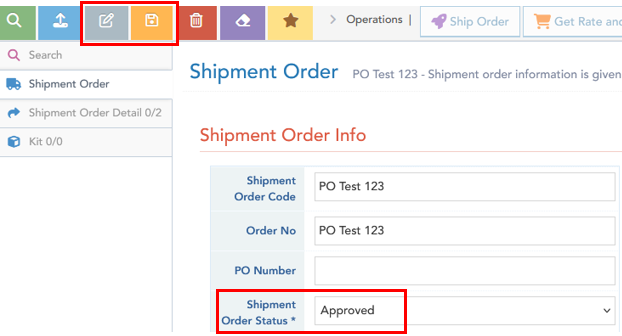
In Logiwa Shipment Order screen, select Edit button (grey icon, upper left). Dropdown-select Shipment Order Status* to Freeze / On Hold. Select Save button (orange icon, upper left); the order is now successfully on hold, and will not be processed.
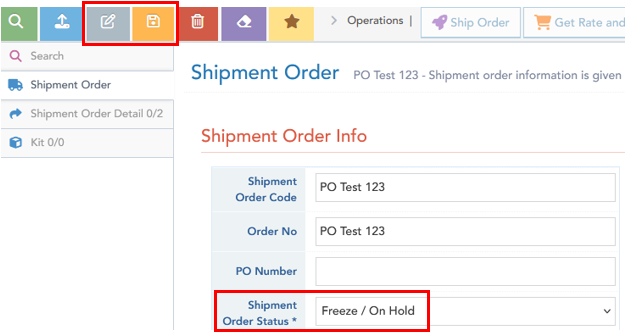
Logiwa Shipment Order Status will show: Freeze / On Hold. Search and filter orders by this order status in Shipment Order screen:
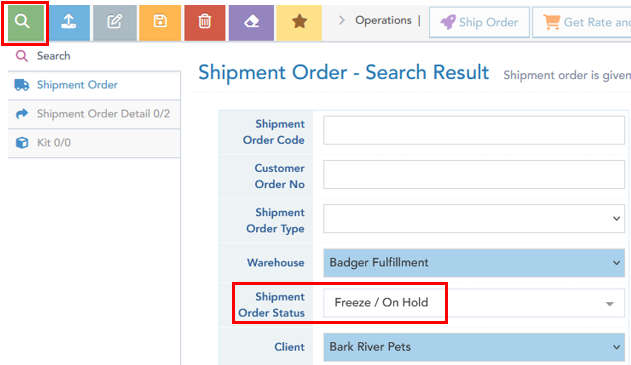
To take an order Off Hold, update order status to Approved in Logiwa Shipment Order screen (ticket submission not necessary). Do NOT update order status to Started.
In Logiwa Shipment Order screen, select Edit button (grey icon, upper left). Dropdown-select Shipment Order Status* to Approved. Select Save button (orange icon, upper left). The order is now available for order processing; if sufficient inventory is on hand, system will automatically allocate and update order status to Started.
Orders that are not finalized or ready for order fulfillment should not be uploaded or synced to Logiwa.
Address Update
Before updating an order address in ecommerce store, or manually in Logiwa, be sure to check Badger's order operation status in Logiwa Shipment Order screen:
An order in any of the following operation statuses may not be modified (address info):
- Packed
- Shipped
For store-connected orders, address updates should be made directly through online store; updates will automatically sync to Logiwa (ticket submission not necessary). Allow ~10 min for address update sync in Logiwa. Do NOT put order on Freeze / On Hold status in Logiwa, as address update executed in store will no longer sync.
If an order was [previously] put on Freeze / On Hold status in Logiwa- the order address must be manually updated directly in Logiwa Shipment Order screen (even if order address is updated within online store).
To manually update an order address, directly in Logiwa, edit address through Logiwa Shipment Order screen.
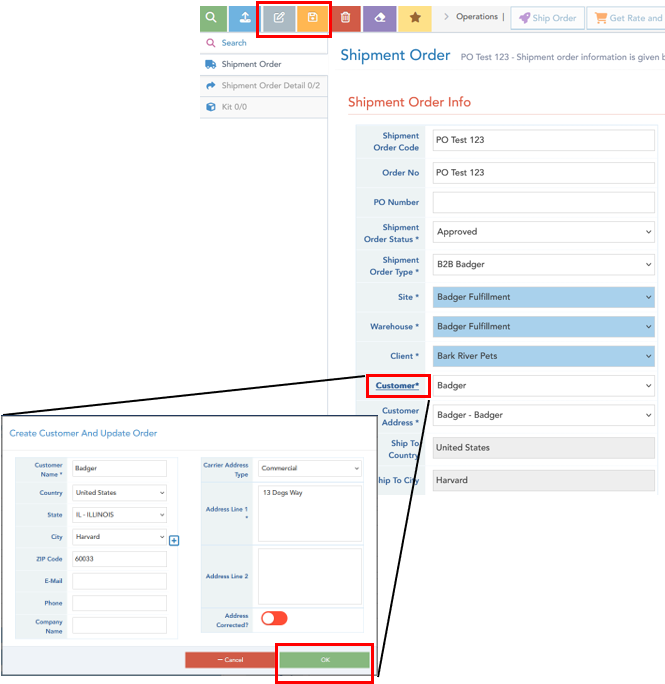
In Logiwa Shipment Order screen, select Edit button (grey icon, upper left). Select the Customer* link, which will open the customer info window. Make necessary address updates, and hit OK. Select Save button (orange icon, upper left); the order address is now successfully updated.
Order Tracking
Once a ground shipping label is generated, the tracking number(s) along with Carrier and Shipment Method will show in the Logiwa Shipment Order.
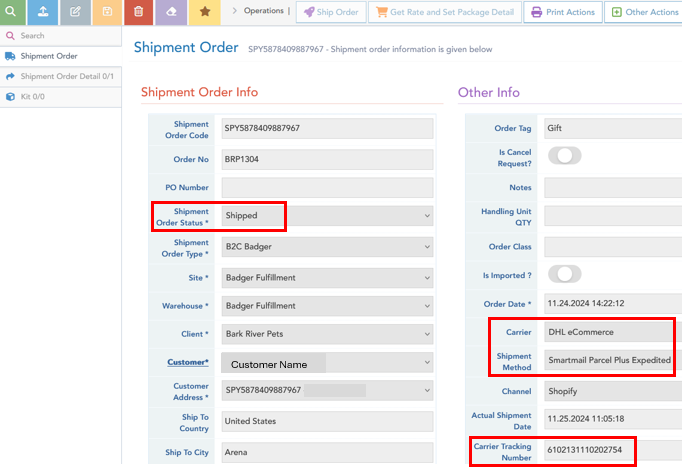
For store connected orders, once an order is marked Shipped in Logiwa, the tracking number will sync to online store, and the store order status will update to: "Complete" or "Fulfilled". Once tracking info is available, orders are typically marked Shipped in Logiwa within 12 hours.
Although Logiwa Shipment Order Status may show Shipped, package may not have physically been picked up by carrier yet. Refer to shipment tracking information to view shipment transit status (ground shipments marked Shipped, are typically picked up same day).
Freight / pallet shipments will not show carrier tracking information in shipment order screen. Refer to Shipping section for freight tracking information and instructions.
Third Party Shipping Account
Third party shipping accounts for D2C orders is not supported.
For B2B orders, discuss using third party shipping accounts with Badger support; do not input third party account info in Logiwa unless otherwise instructed. Submit the Help Request ticket - Order Processing.