Contents
Terminology
- Item Code
Item SKU - Barcode
Item [scannable] barcode/UPC
- Pack Type
Stock keeping unit of measure: UNIT or CASE [or PALLET] as defined by Badger in item setup.
- License Plate or "LP"
BF#### or LT####
A unique barcode label affixed to outside of pallet that physically and systematically follows pallet around warehouse locations. LP# can be used to look up inventory info for a particular pallet:
-
- Warehouse Location
- SKU/Description
- Pack Quantity
- Free Quantity
- Expiration Date
- Lot Code
- Quarantine Status
Note: Products transferred or received into picking bin locations (or GRND/RCV locations) may not have a storage LP. Every inventory line item has a "Location" but may not have an "LP".
- “Pack Quantity” vs. “Free Quantity”
Pack Quantity: physical product quantity on an LP or in a location
Free Quantity: physical product quantity minus any allocated order quantities (available product quantity).
Example:
| SKU | Allocated Order QTY | Pack QTY | Free QTY |
| DT-MB-PB | 23 | 97 | 74 |
- Suitability Reason / Quarantine Reason
Quarantined product or product On Hold, will show “On Hold” in Inventory Report.

Inventory Reports
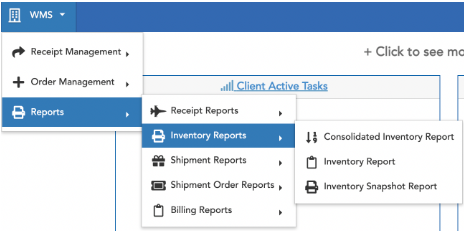
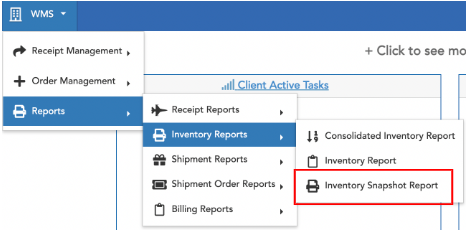
WMS -> Reports -> Inventory Reports
Inventory Report, by default, displays 200 listings. On the bottom toolbar, use the toggle arrow to view additional pages of listings or select the multi-line icon to open search results to 1000 listings per page.

It is recommended to download Excel file to view complete inventory item list. Export full inventory list to Excel by selecting “X” - icon on bottom left toolbar.

Zero On-Hand Quantity (Out of Stock)
Logiwa-reports only display line-items for on-hand quantities >0. If there is zero on-hand quantity for a particular item, inventory reports will not display a line item; if a SKU/item cannot be found in inventory reports, that means there is zero quantity on-hand.
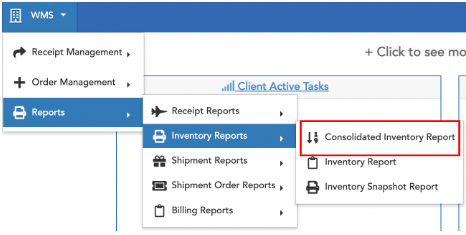
Consolidated Inventory Report
Consolidated Inventory Report shows total item inventory (one line item/SKU) vs. individual location-based inventory quantities.
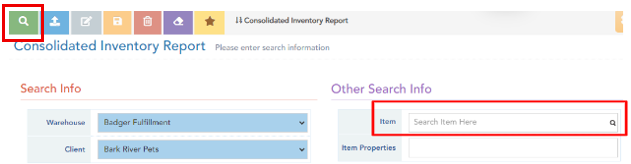
Hit Search (green eyeglass icon upper left) to view all item consolidated inventory, or enter a specific Item SkU to view single item consolidated inventory.
The Consolidated Inventory Report includes the following key data columns:
- Item/SKU
- Item Description
- Item Barcode
- Total Inventory [pack] Quantity
- Total Inventory Available Quantity
Inventory Report
Inventory Report is the go to report for seeing real-time inventory quantities along with product attributes and quarantine-status (product “On Hold”).
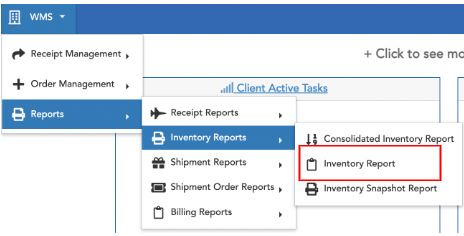
The general Inventory Report includes the following key data columns:
- Item/SKU
- Item Barcode
- Item Description
- Pack Type (UNIT, CASE, PALLET)
- Warehouse Location
- LP#
- Line Pack* Quantity (see terminology above)
- Line Free* Quantity (see terminology above)
- Expiration Date
- Lot No
- Suitability Reason (“On Hold”)
- Quarantine Reason (“On Hold”)
Items that show On Hold will not be able to allocate to orders.

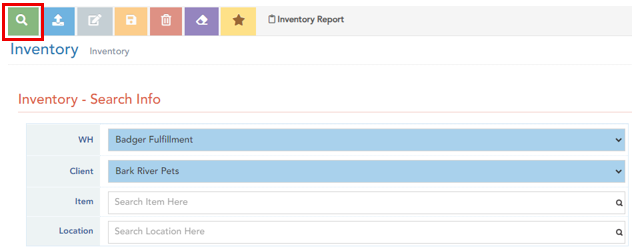
"View All" Inventory
In inventory search screen, hit Search (leave all search criteria fields blank)
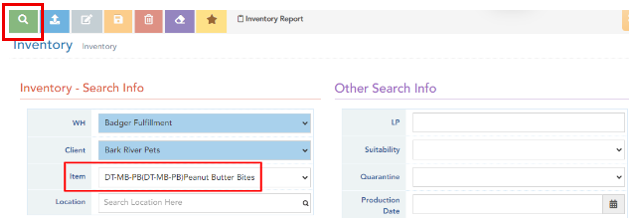
Specific Item Inventory
To display all inventory for a specific item: Enter item SKU in item field (hit enter) and then hit Search (green icon, upper left).
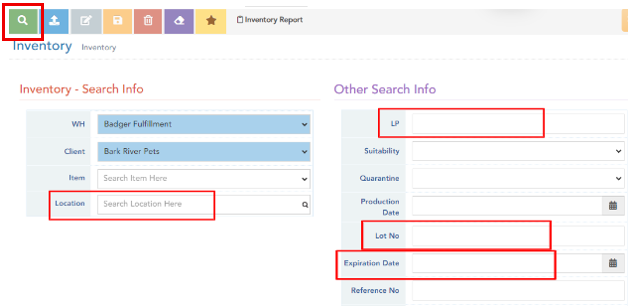
Other search criteria may be used to filter and view specific inventory (i.e. Location, LP, Expiration Date, Lot No); Utilize these fields on their own, or in addition to Item SKU.
Inventory Snapshot Report
Inventory Snapshot Report displays inventory data from a specified date/range (useful for EOM or EOY inventory reporting).
The report can be run open for all inventory, or a SKU may be specified. A date or date range must be specified in the Snapshot Date field-calendar. Hit Search.
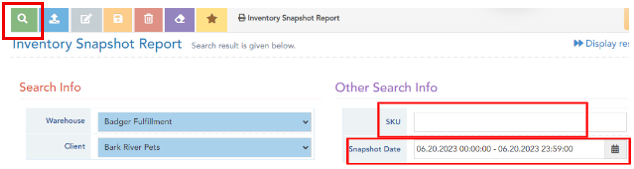
The Inventory Snapshot Report includes the following key data columns (as reported from the date(s) specified):
- SKU
- Item Description
- Snapshot Date
- Inventory [pack] Quantity
- Product Expiration Date (if applicable)
- Product Lot No (if applicable)
- Warehouse Location
Receipt Reports
WMS -> Reports -> Receipt Reports

Receipt Report
WMS -> Reports -> Receipt Reports -> Receipt Report
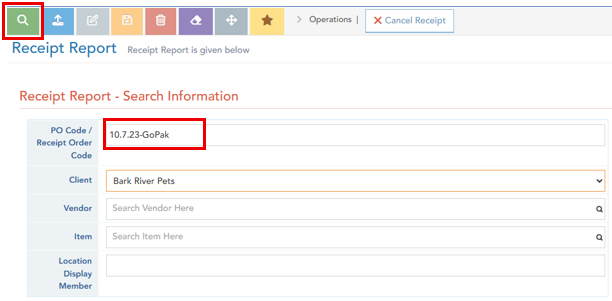
This report shows a comprehensive list of received items for a given Receipt Order.
Input a completed Receipt Order Code, and select Search.
Compare [Received Items] with Receipt Order
WMS -> Reports -> Receipt Reports -> Compare Receipt With Receipt Order
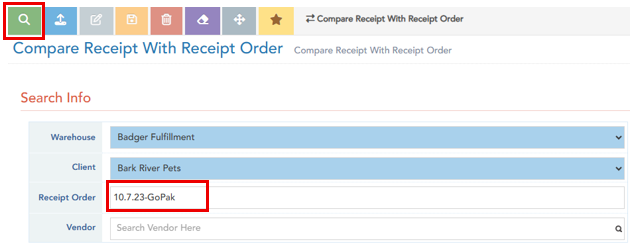
This report shows a consolidated list of item total overages/shortages for a given Receipt Order. Items received in full will show in green and item overages will show red.
Input a completed Receipt Order Code, and select Search.

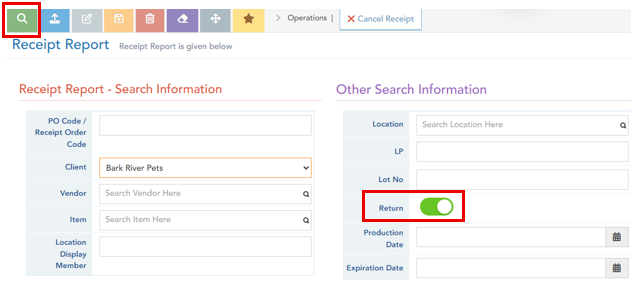
Returns Receipt Report
WMS -> Reports -> Receipt Reports -> Receipt Report
In the Receipt Report search screen, toggle Return (green), to view order return information.
Shipment Reports
Shipment Report ALL
Shows all shipped orders (including partially shipped); displays one line item per order item shipped.
WMS -> Reports -> Shipment Reports -> Shipment Report All

- Shipment Order Code
- Item
- Order No
- Customer Name
- Shipment Date & Time
- Expiration Date & Lot No
- Ground Shipment Carrier Tracking Number
- Ground Shipment Carrier Rate
- Shipment Method
- Carrier
- Shipment Address
Shipment Order Status Report
WMS -> Reports -> Shipment Order Reports -> Shipment Order Status Report

Billing Report
Detailed Billing Report
The WMS Detailed Billing Report shows a comprehensive and detailed list of warehouse services/charges, for a particular billing period (weekly).
WMS -> Reports -> Billing Reports -> Billing Detailed Report
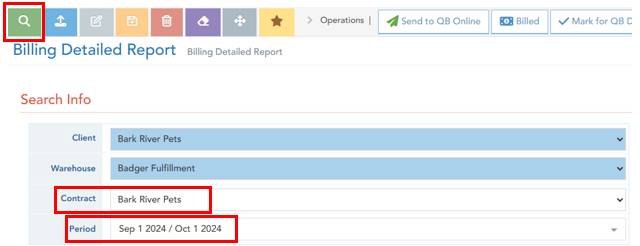
- Input client name in Contract field.
- Dropdown select contract Period
- Hit Search (green eyeglass icon)
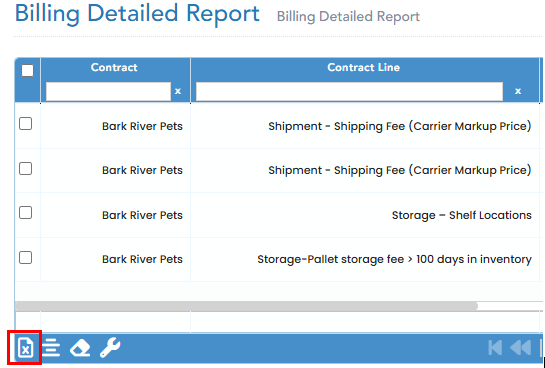
Export the report to Excel by selecting the "X"-icon on the lower toolbar: