
Your Dashboard inventory quantities update in real time, as products get received and orders get allocated, picked, packed, and "shipped".
Ecommerce Store Inventory Sync
Your Dashboard inventory quantities automatically sync to connected ecommerce platforms approximately every 15 minutes; this live inventory data can be viewed directly within your store.
Inventory quantities marked "On Hold" or "Damaged" in your Dashboard, will not sync to store "available" inventory.
Dashboard Inventory Reports
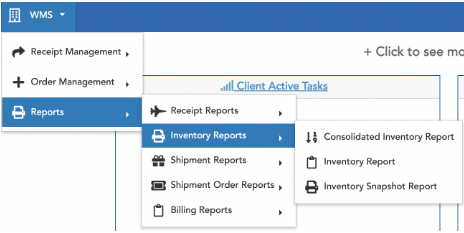
Dashboard -> Reports -> Inventory Reports
Export full inventory list to Excel by selecting “X” - icon on bottom left toolbar.

Zero On-Hand Quantity (Out of Stock)
Dashboard inventory reports only display line-items for on-hand quantities >0. If there is zero on-hand quantity for a particular item, inventory reports will not display a line item; if a SKU / item cannot be found in inventory reports, that means there is zero quantity on-hand.
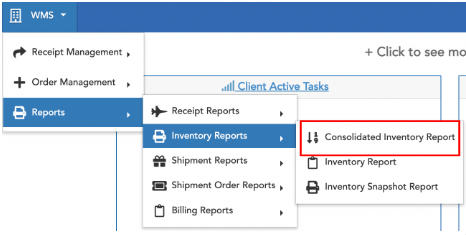
Consolidated Inventory Report
Consolidated Inventory Report shows total item inventory (one line item/SKU) vs. individual location-based inventory quantities.
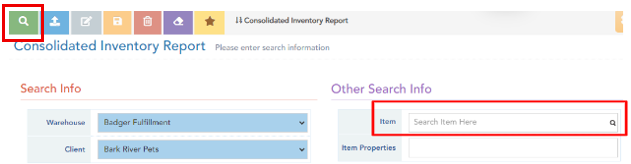
Hit Search (green eyeglass icon upper left) to view all item consolidated inventory, or enter a specific Item SkU to view single item consolidated inventory.
The Consolidated Inventory Report includes the following key data columns:
- Item/SKU
- Item Description
- Item Barcode
- Total Inventory [pack] Quantity
- Total Inventory Available Quantity
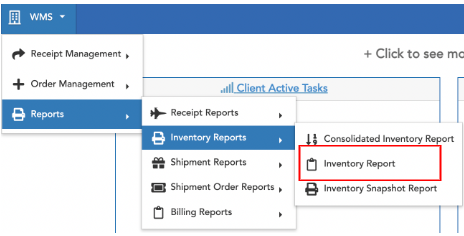
Inventory Report
Inventory Report is the go to report for seeing real-time inventory quantities along with product attributes and quarantine-status (product “On Hold”).
The general Inventory Report includes the following key data columns:
- Item/SKU
- Item Barcode
- Item Description
- Pack Type (UNIT, CASE, PALLET)
- Warehouse Location
- LP#
- Line Pack* Quantity (see terminology above)
- Line Free* Quantity (see terminology above)
- Expiration Date
- Lot No
- Suitability Reason (“On Hold”)
- Quarantine Reason (“On Hold”)
Items that show On Hold will not be able to allocate to orders.

"View All" Inventory
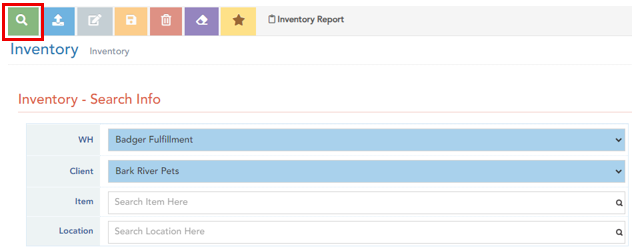
In inventory search screen, hit Search (leave all search criteria fields blank)
Specific Item Inventory
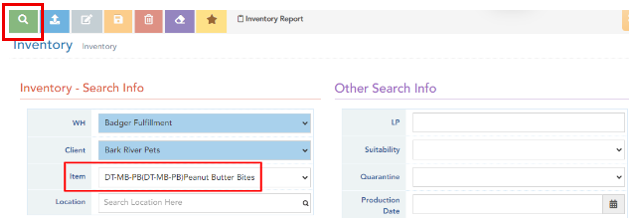
To display all inventory for a specific item: Enter item SKU in item field (hit enter) and then hit Search (green icon, upper left).
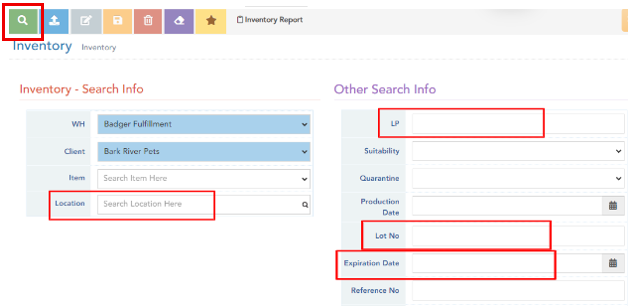
Other search criteria may be used to filter and view specific inventory (i.e. Location, LP, Expiration Date, Lot No); Utilize these fields on their own, or in addition to Item SKU.
Inventory Snapshot Report
Inventory Snapshot Report displays inventory data from a specified date/range (useful for EOM or EOY inventory reporting).
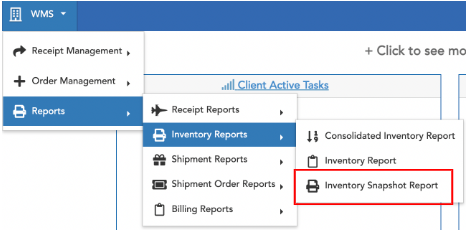
The report can be run open for all inventory, or a SKU may be specified. A date or date range must be specified in the Snapshot Date field-calendar. Hit Search.
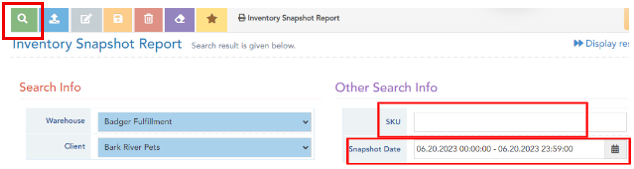
The Inventory Snapshot Report includes the following key data columns (as reported from the date(s) specified):
- SKU
- Item Description
- Snapshot Date
- Inventory [pack] Quantity
- Product Expiration Date (if applicable)
- Product Lot No (if applicable)
- Warehouse Location
Inventory Tracking
The following items may be tracked in inventory reports; in order for Badger to record, items must be clearly displayed on outside of all unit and case packaging.
- Lot Code
- Expiration Date
- Production Date
Inventory Hold
Inventory put On Hold will not allocate to orders; to allocate, inventory must be taken Off Hold.
Inventory quantities On Hold will not report to online store*.
Inventory On Hold will show 'On Hold' in the Dashboard Inventory Report in the Quarantine Reason field and/or Suitability Reason field; use these fields to search / filter this item status on the Inventory Report search screen.

Request Support via the Help Center to put inventory 'On Hold' or to take inventory 'Off Hold'.
Product Expiry
Product may allocate to orders up to the date of expiration. It is the client's responsibility to actively review inventory and Request Support to put product 'On Hold' as necessary. By default, inventory past the expiration date will not allocate to new orders.