Contents
- Update Password
- Toolbar / Navigation
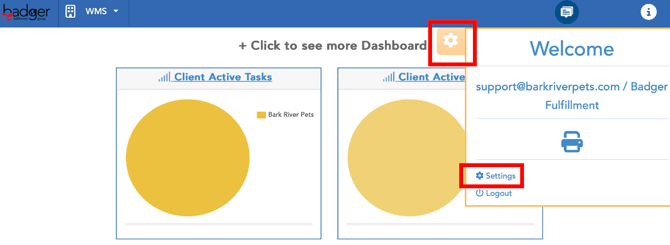
Update your password under settings:
Toolbar / Navigation
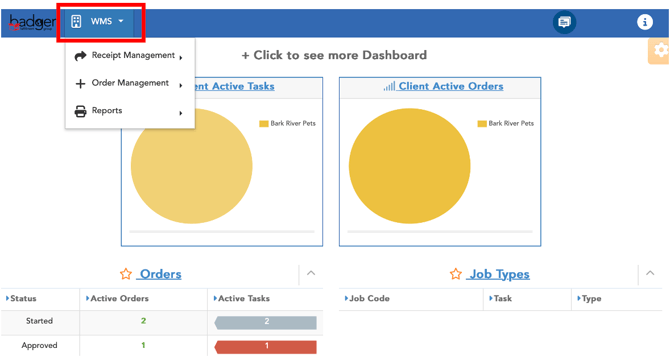
Under the WMS tab, access Receipt Management, Order Management, and Reports.
In search and operation screens, Client [company name] field is pre-populated.

The following toolbar will appear within the operation and report screens:
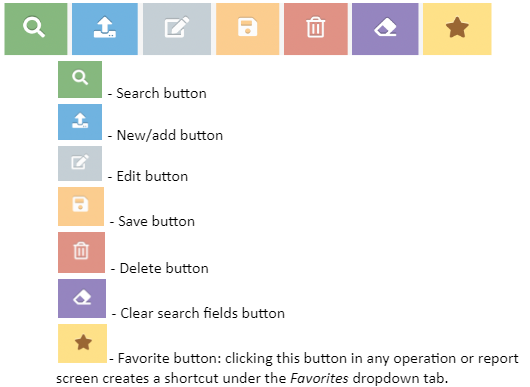
In a report or search-result screen, select  to refresh the page.
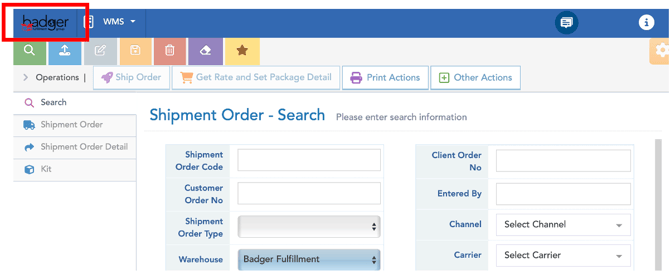
Selecting the Badger [or Logiwa] icon in upper left will redirect back to home page.
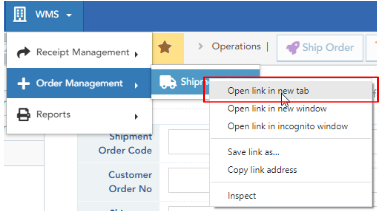
When opening new views, right click on item to dropdown option: Open link in new tab (to have multiple pages open at once).
In search-result screens, utilize the Display criteria button (upper right) as a “back-button”, to return to the search criteria screen.

To enter a SKU in the Item* field, click in the text box, and enter an entire/or part of a SKU, item barcode, or item description and hit enter. Do not use the Find (green button) to enter SKUs.

To return a dropdown list of all account-wide SKUs, click in the empty text box, and hit enter key. Scroll through the dropdown list and select the desired SKU.
When viewing reports, utilize the “X”- icon (bottom left toolbar) to export data to Excel (only available in certain screens).

In search-result screens, by default, 200 listings will be displayed. On the bottom toolbar, use the toggle arrow to view additional pages of listings or select the multi-line icon to open search results to 1000 listings per page.

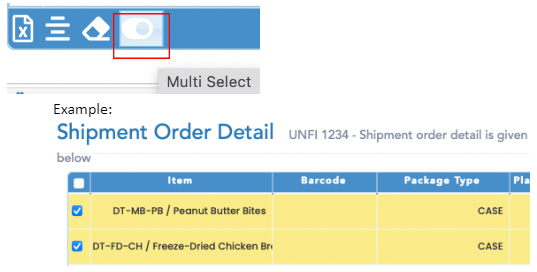
In select views, utilize the “multi-select” toggle (bottom left toolbar) to select multiple line items: