
Contents
Overview
A Manual Order is created directly in your Dashboard rather than automatically syncing from an integrated ecommerce platform, such as Shopify or WooCommerce. Manual Orders do not sync back to your ecommerce platform and must be managed within your Dashboard.
Common examples of Manual Order entry include B2B customer shipments, pallet freight shipments, Work Orders, Disposal Orders, and other shipments that are not automatically imported from an integrated ecommerce store.
Create a Manual Order
1. Navigate to Shipment Orders
Dashboard → Fulfillment → Shipment Orders
Select Create Shipment Order.
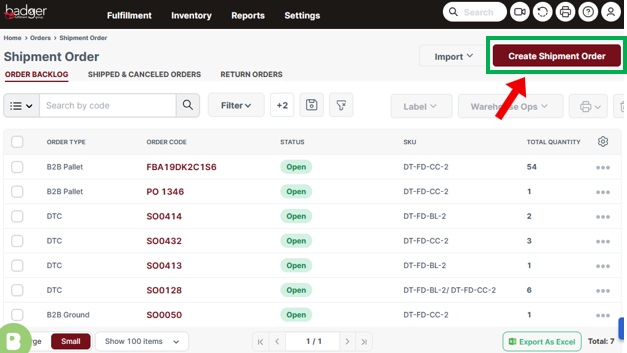
2. Enter Order Details
Complete the following Order Details, then select Next Step.
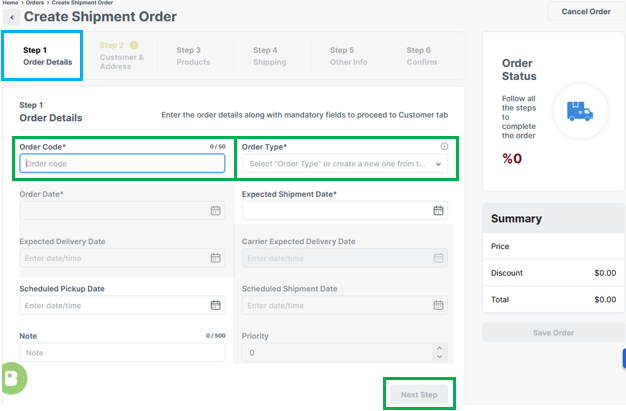
| Field Name | Description |
| Order Code* | Enter a unique order ID using letters and/or numbers. |
| Order Type* |
|
| Order Date | Leave this as the date the order is created. |
| Expected Shipment Date |
B2B orders only. For processing as soon as possible, leave blank, or enter a future requested ship date, allowing for Badger's standard processing SLAs. DTC orders are automatically processed according to your account workflow and standard processing SLAs; do not use this field to schedule or delay DTC fulfillment. |
| Note |
For B2B orders, only use this field when needed to provide simple shipment instructions, such as packing requests, freight scheduling information, or delivery requirements. For recurring shipment requirements, submit a Request Support through the Help Center to have them added to your automated account workflow. DTC orders: Order Notes are not supported for standard DTC orders, as these orders follow your configured automated account workflow. To add or update recurring DTC processing requirements, submit a Request Support through the Help Center. |
3. Enter Customer Information
Enter the highlighted Customer & Address information below, then click Next Step to continue.
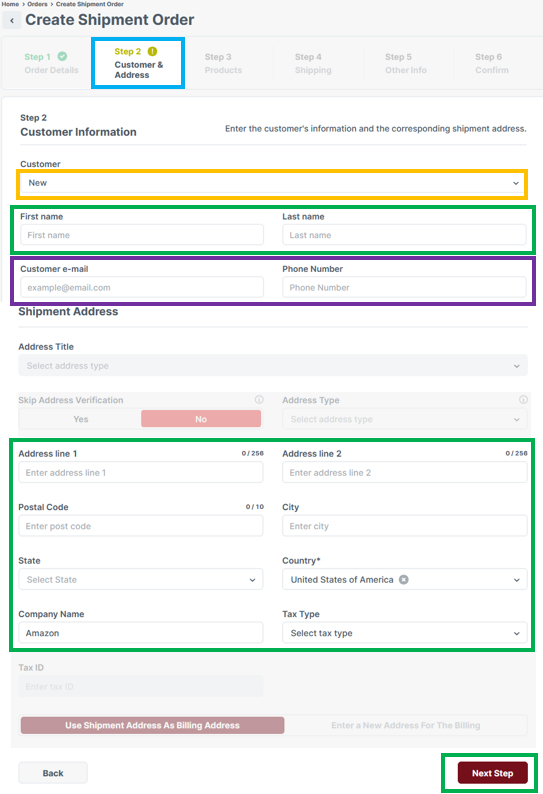
You can either manually enter a new customer address or use the Customer field to search for and select an existing address profile, which will automatically populate the address information.
For recurring shipments, we recommend using saved Customer Address Profiles to simplify order entry and ensure consistent shipping information. See Create Customer Address Profiles for setup instructions.
For B2B Pallet orders where Badger is scheduling freight, be sure to include the recipient's contact email address and phone number. This information is required to coordinate freight scheduling and delivery.
4. Add Products
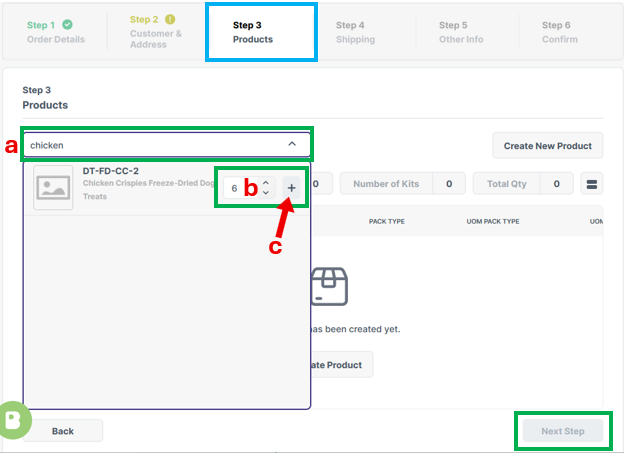
Add each product to the order:
a. Search for the product by SKU or Product Name.
b. Enter the Order Quantity.
c. Select the + icon to add the product to the order.
d. Repeat until all products and quantities have been added.
Review the products and quantities for accuracy, then select Next Step.
5. Shipping
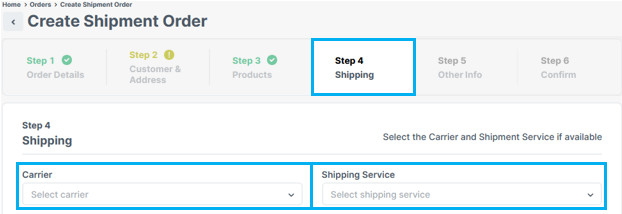
Ground Parcel
- Standard 2–5 Business Day: Leave the Carrier and Shipping Service fields blank to rate shop eligible standard shipping services.
- Express 1-2 Business Day: Select:
- Carrier: Badger FedEx - FedEx
- Shipping Service: 2 Day or Standard Overnight
For Pallet Freight shipments, leave the Carrier and Shipping Service fields blank.
6. Save Order
Review your order details for accuracy, then select Save Order on the right-hand side of the page.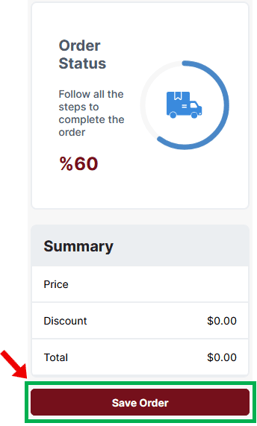
Select Go Back To Shipment Order List to return to the Shipment Orders Dashboard. 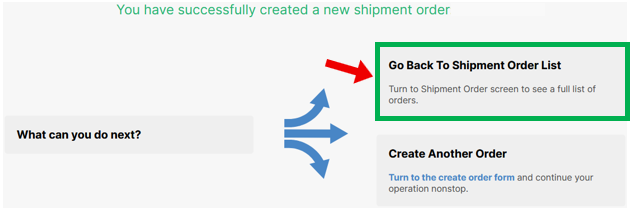

Your order has been successfully created and is now live in the Shipment Orders Dashboard and ready for processing.
- Work Orders: Submit the Submit Work Order form through the Help Center to provide the project details and have the work reviewed and scheduled by the Badger team.
- Disposal Orders: Submit the Approve Disposal Order form through the Help Center to authorize the disposal and have it scheduled by the Badger team.
- Orders Not Ready for Processing: If the order should not be processed yet, update the order status to On Hold until it is ready to be released.
Bulk Create Manual Orders
If you are creating multiple orders or adding many products to an order, you can bulk create Manual Orders using an Excel import template.
1. Download the Order Template
Download the appropriate Excel template for the order type you are creating:
2. Complete the Template
Enter the required order and product information, then save the completed Excel file.
Fields with red column headers are required. Be sure to review all order details, SKUs, quantities, and shipping information for accuracy before importing.
3. Navigate to Bulk Import Shipment Orders
Dashboard → Fulfillment → Shipment Orders → Import → Bulk Import Shipment Orders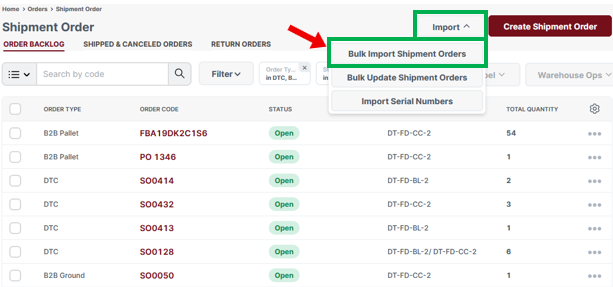
4. Upload & Import the File
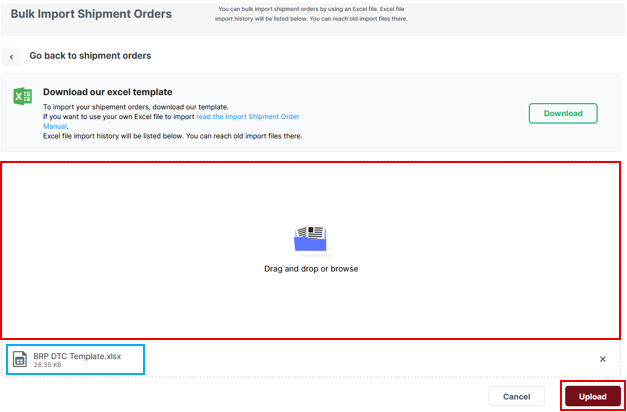
Drag and drop the completed Excel file into the upload window, or select the window to browse for the file.
Once the file appears in the upload list:
1. Select Upload.
2. On the following screen, select Import.
5. Confirm the Import Status
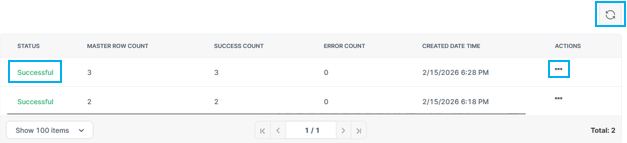
Review the import status in the lower section of the page. You may need to select the Refresh button to view the latest status.
-
Successful: The Status will display Successful.
-
Unsuccessful: Under Actions, select the three dots (⋯) → Details to review the error message(s). Correct any errors in the Excel file and re-import as needed.
6. Verify the Orders
After a successful import, return to the Shipment Orders Dashboard and confirm that all orders were created correctly.
Review the imported orders for accuracy.
Add Order Labels & Documents
Order labels and documents can be uploaded to B2B orders only. Documents for Work Orders should be submitted through the Submit Work Order form in the Help Center. Uploaded documents are not supported for standard DTC orders.
Common B2B order documents include:
- Case or pallet labels (e.g., Amazon FBA labels)
- Custom packing lists or retailer documents
- Commercial invoices
- Certificates of origin
- Other international customs documents
Labels and documents can only be uploaded after the Shipment Order has been created.
1. Open the Shipment Order
Dashboard → Fulfillment → Shipment Orders
Select the Order Code for the order you want to update.
2. Upload Labels or Documents
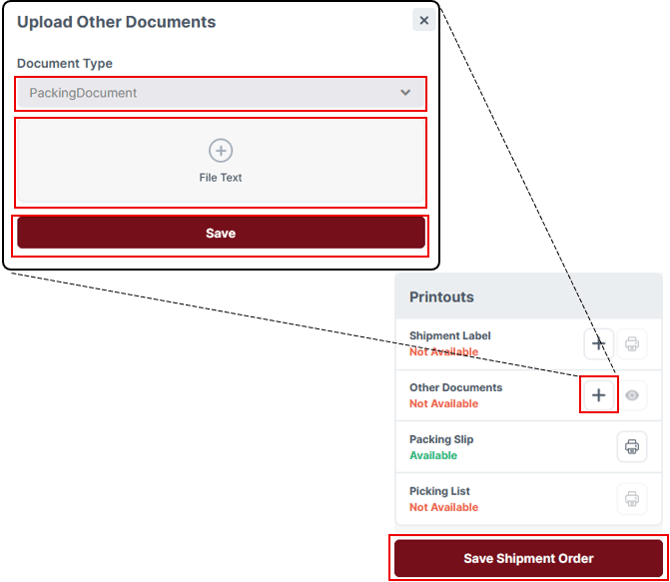
On the right-hand side of the order page, locate the Printouts section.
1. Select the + icon next to Other Documents. Do not select Shipment Label.
2. Under Document Type, select PackingDocument.
3. Upload the applicable file(s).
4. Select Save.
3. Save the Order
Select Save Shipment Order to save your changes.
Your labels or documents are now attached to the B2B Shipment Order.
Important: Uploading a document does not create a new processing workflow. Recurring labeling, printout, or document requirements should be configured as part of your approved account workflow. To add or update these requirements, submit a Request Support through the Help Center.