
Contents
- Overview
- View Shortage Report (Dashboard)
- Shortage Reasons
- Recommended Actions / Troubleshooting
- Release an Order for Partial Fulfillment
Overview
The Shortage Report provides visibility into order items that could not be fully allocated during order processing. Customers can view affected orders, shorted quantities, and the reason inventory was unavailable for allocation. Shortages may occur because inventory is out of stock or because available inventory is temporarily ineligible for allocation due to replenishment needs or allocation rules. This report helps customers quickly identify and address fulfillment issues.
By default, orders will not be processed until all items are available for allocation, meaning partial shipments are not automatically released. Orders in shortage status are automatically retried for allocation as inventory becomes available or replenishment tasks are completed.
See the section below for instructions on releasing an order for partial fulfillment.
View Shortage Report
Dashboard → Reports → Shortage Report
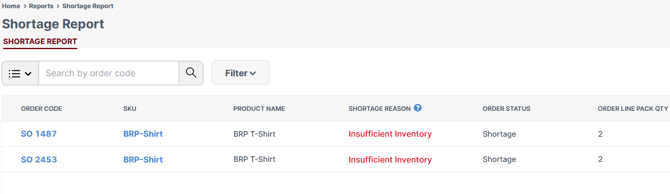
Scroll horizontally to the right to view additional report fields and properties (shown below).
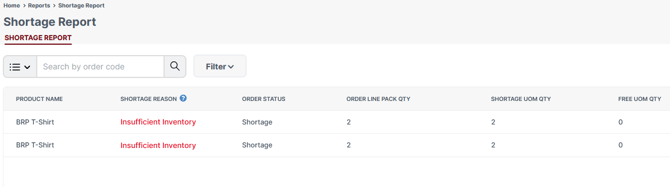
| Column | Description |
| Order Line Pack QTY | The quantity specified on the order line based on the selected pack type. |
| Line Pack Type | The pack type specified on the order line (for example, Unit or Case). |
| Shortage UOM QTY | The quantity that could not be allocated during order processing, expressed in the SKU’s primary unit of measure (UOM). |
| Shortage Pack QTY | The quantity that could not be allocated during order processing, expressed in the pack type specified on the order. |
| Free UOM QTY | The quantity currently available for allocation, expressed in the SKU’s primary unit of measure (UOM). |
| Free Pack QTY | The quantity currently available for allocation, expressed in the SKU’s higher pack type (for example, Case). |
| On Hand UOM QTY | The total physical inventory currently in the warehouse, including both allocated and available inventory, expressed in the SKU’s primary unit of measure (UOM). |
| On Hand Pack QTY | The total physical inventory currently in the warehouse, including both allocated and available inventory, expressed in the SKU’s higher pack type (for example, Case). |
| Damaged UOM QTY | The quantity of damaged or on-hold inventory that is unavailable for allocation, expressed in the SKU’s primary unit of measure (UOM). |
| Damaged Pack QTY | The quantity of damaged or on-hold inventory that is unavailable for allocation, expressed in the SKU’s higher pack type (for example, Case). |
Report Tips
- Drag and drop the column headers to customize the report layout and display the most relevant data. Your browser will automatically save these changes for future sessions.
-
Select the Order Code to open the order line in the Shipment Order Dashboard in a new window.
-
Select the SKU to open the Inventory By Location report in a new window and view current inventory availability. If no line items appear in the report, the SKU currently has no inventory on hand.
-
Enter an Order Code in the search bar to locate a specific order.
-
Use the Filter button located to the right of the search bar to filter the report by product or order attributes, such as Store Order Number, SKU, and other order details.
- Select the Export as Excel button in the bottom toolbar to export the report data to an Excel file.
Shortage Reasons
Insufficient Inventory
“Insufficient Inventory” indicates there is no free inventory currently available for the order to allocate. This may occur because the item is completely out of stock or because all available inventory has already been allocated to other open orders in the fulfillment queue. Orders with this shortage reason will remain in a shortage status until one of the following actions occurs:
- Additional inventory is received, allowing the order to fully allocate and proceed to processing.
- Shorted items are removed from the order, either through the connected store or directly within your Dashboard.
- The order is canceled, either through the connected store or directly within your Dashboard.
By default, orders are not processed until all items are available for allocation and fulfillment.
No Eligible Stock Found
“No Eligible Stock Found” indicates that inventory exists in the warehouse, but it is not currently eligible for allocation. This may occur for one of the following reasons:
A) Picking Bin Replenishment Required
The inventory is available in reserve storage, but the picking bin requires replenishment before the order can allocate. No action is required, as replenishment tasks are automatically executed throughout the day.
Orders affected by picking bin replenishment allocate automatically once replenishment tasks are completed.
B) Allocation Criteria Mismatch
The order contains specific allocation requirements (such as lot/batch number, expiration date, or other inventory attributes) that do not match the available inventory. Review the order details to confirm the specified inventory criteria align with the inventory currently available in the warehouse.
Recommended Actions / Troubleshooting
| Shortage Reason | Recommended Action |
| Insufficient Inventory | Wait for inventory receipt, edit the order to remove/reduce shorted items, or cancel the order. |
| No Eligible Stock Found | First determine whether the order contains specific allocation requirements (lot/batch, expiration date, etc.). If allocation criteria were specified, confirm they match available inventory. If no allocation criteria were specified, the shortage is most likely due to a pending picking bin replenishment and no action is typically required. |
Release an Order for Partial Fulfillment
If you would like to release an order that is currently in shortage status, you can remove or reduce the quantity of the shorted items on the order. Before making any adjustments, first confirm the shortage is due to insufficient inventory and not a temporary picking bin replenishment delay. Orders with a “No Eligible Stock Found” shortage reason related to replenishment should typically remain unchanged, as replenishment tasks are automatically generated and the order will allocate once inventory is moved to the picking location.
If the item is truly out of stock or insufficient inventory exists, you can edit the order to remove or adjust the affected line items and allow the remaining items to process for fulfillment. For detailed instructions on editing an order, see: Edit an Order.
Once shorted items are removed or reduced, the order will reattempt allocation and proceed through normal fulfillment processing.